# Intercom
> Translate & localize Help Center articles
URL: https://store.crowdin.com/intercom-app
Identifier: intercom-app
Category: Customer Service
Type: App
Author: Crowdin
OpenAPI spec: https://store.crowdin.com/intercom-app/openapi.json
Translate your Intercom content with ease. Setup integration once, define your localization workflow and spend less time managing translations.
> Intercom is a conversational relationship platform that helps businesses build better customer relationships through personalized, messenger-based experiences.
## Features at a glance
- Help Center articles translation.
- Manual content synchronization before and after translation.
- WYSIWYG file preview for translators.
- Quick sync and translation of even minor content updates, like a new sentence or a changed word.
## Intercom translation connector overview
## Setting up the Intercom connector
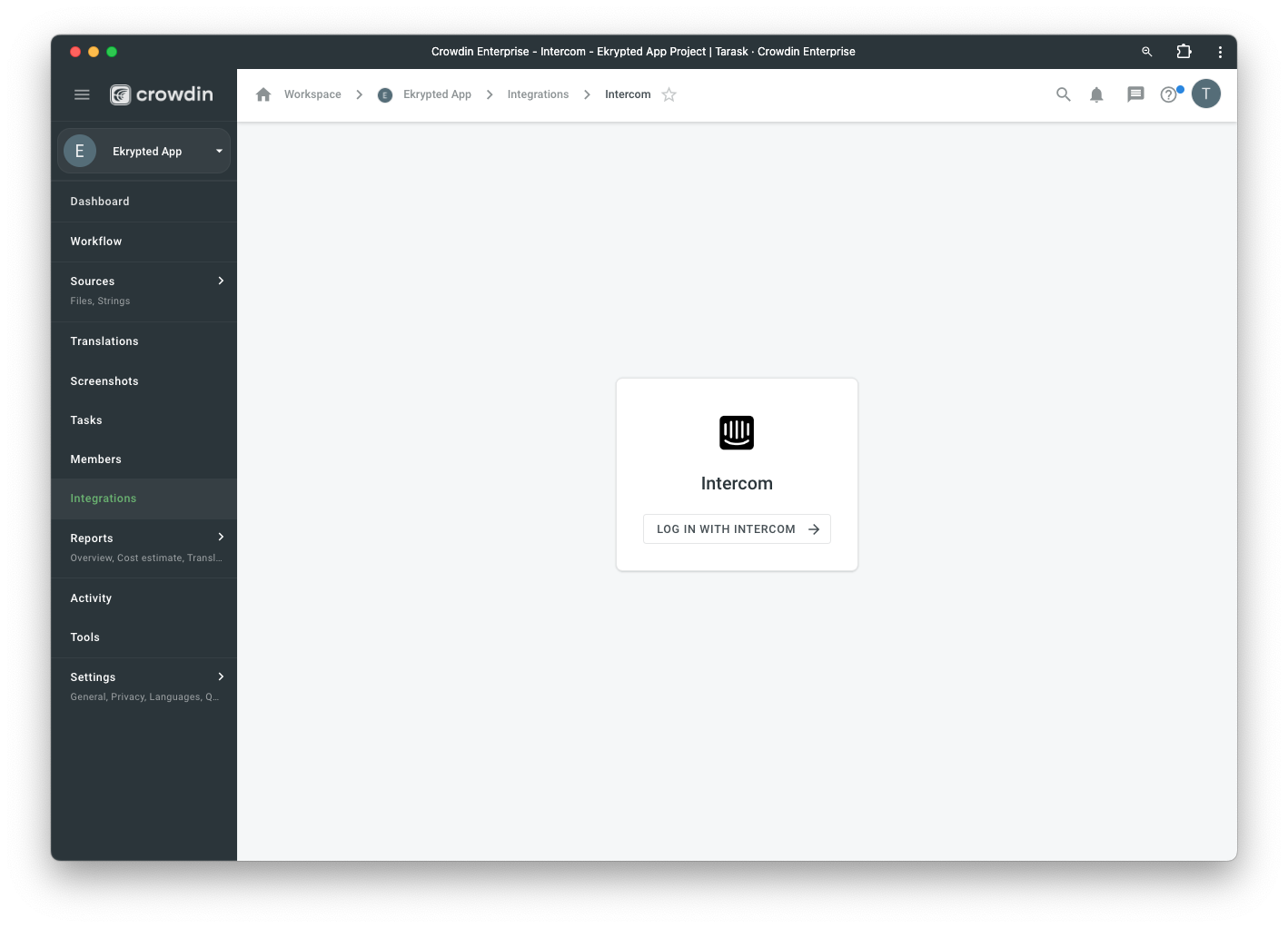
After installing the application, you will find it in your project *Integrations* section.
Follow the instructions on the screen to connect your Intercom account.
## Manual synchronization
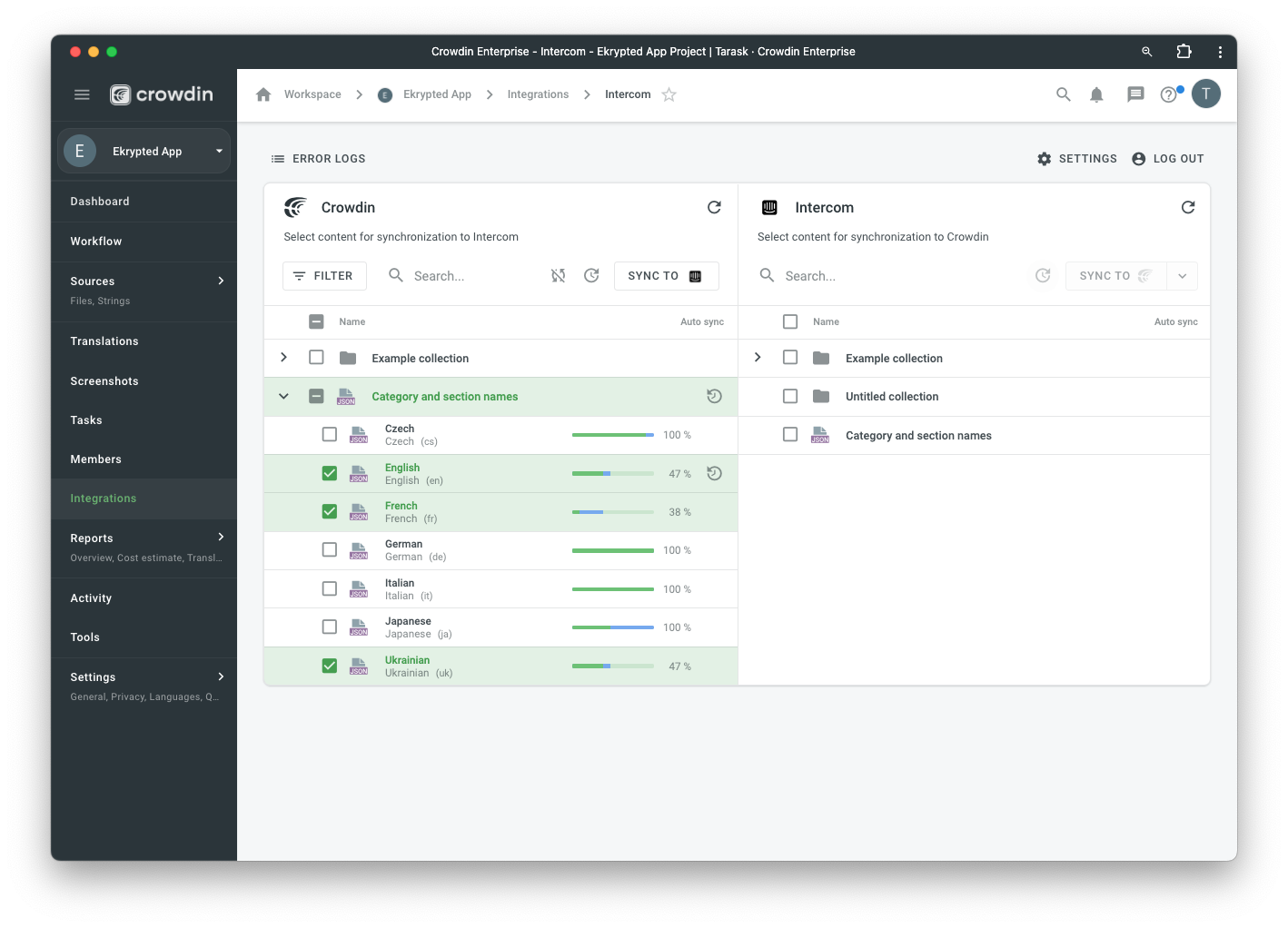
To import content for translation from Intercom, follow these steps:
1. Open the Intercom integration.
2. In the Intercom section (right panel), select the files that should be translated.
3. Click Sync.
To export translations to Intercom, follow these steps:
1. Open the Intercom integration.
2. In the left section, select the files that will be synced to Intercom.
3. Click Sync to Intercom.
## Subscription
The free trial is 14 or 30 days depending on the subscription plan.
### Q&A
Q: *The translations for some languages are not imported into Intercom from my Crowdin project. How can I solve this issue?*
A: The issue might be caused by the mismatch of language codes used in Crowdin and Intercom. To fix the language code mismatch issue, you can configure the language mapping in your Crowdin project.
For example, we'll configure a language mapping for Spanish:
1. Open your project and go to the **Settings** tab.
2. In the **Export** section, click Language Mapping.
3. Select Spanish from the Language drop-down menu.
4. Select locale from the Placeholder drop-down menu.
5. Type `es` in the Custom code text area and click **Save**.
If needed, you can apply the same solution to other languages.
When setting up a language mapping for other languages, make sure that the custom code in your Crowdin project matches the one used in Intercom.
#### See Also
Crowdin Language CodesIntercom Language Codes
## Resources
- [Crowdin Language Codes](https://support.crowdin.com/developer/language-codes/)
- [Intercom Language Codes](https://developers.intercom.com/docs/references/rest-api/api.intercom.io/Articles/article/#section-article-translated-content-object)
- [Intercom App Store](https://www.intercom.com/app-store/?app_package_code=crowdin)
- [API Reference](https://intercom-app.awesome-crowdin.com/api-docs): [OpenAPI spec](https://intercom-app.awesome-crowdin.com/api-docs/swagger.json)