
Requires Crowdin account
AI Pipeline

Native Crowdin AI integrations often suffer from "prompt overload" - when an LLM is given too many instructions (glossaries, style guides, formatting rules, and translation tasks) simultaneously, it tends to lose focus, ignore constraints, or hallucinate.
AI Pipeline solves this by breaking the translation process into a deterministic sequence of focused tasks. Instead of one complex request, the AI performs translation, verification, and self-correction in separate, manageable steps.
Note: This integration processes translations through multiple sequential steps. It is significantly slower than native AI translation and is designed for workflows where maximum translation quality is more important than speed.
How It Works
1. Installation & Setup
After installing the app, it registers as a standard AI Provider within your organization. To configure your first pipeline:
- Navigate to the Prompts tab in your Crowdin project or organization settings.
- Click New Prompt.
- Crucial: Select "AI Pipeline" from the prompt editor section.
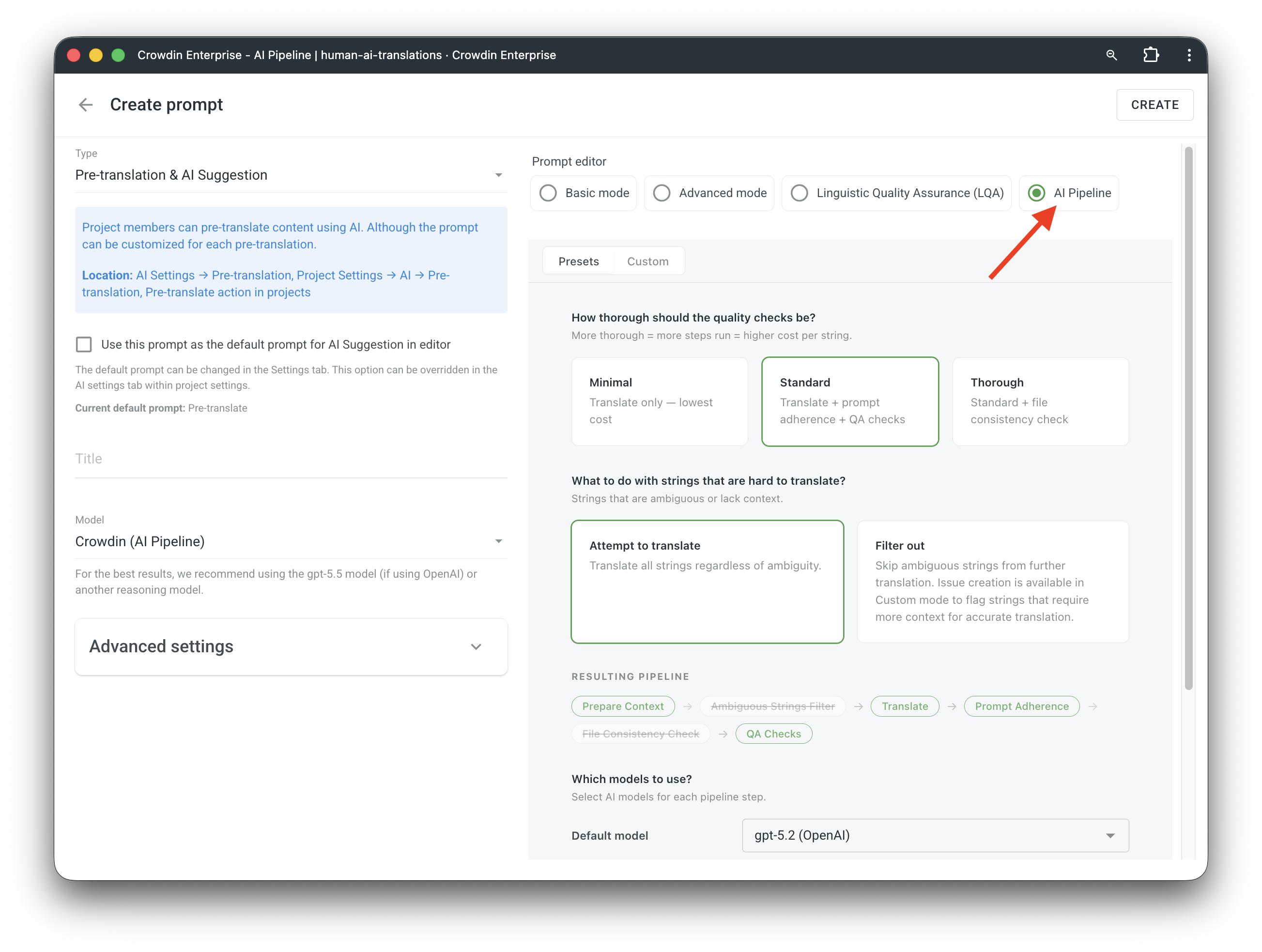
Note: We do not recommend using the AI Pipeline for AI suggestions in the editor. It is recommended that it is used as a prompt for pre-translations instead.
2. Building Your Workflow
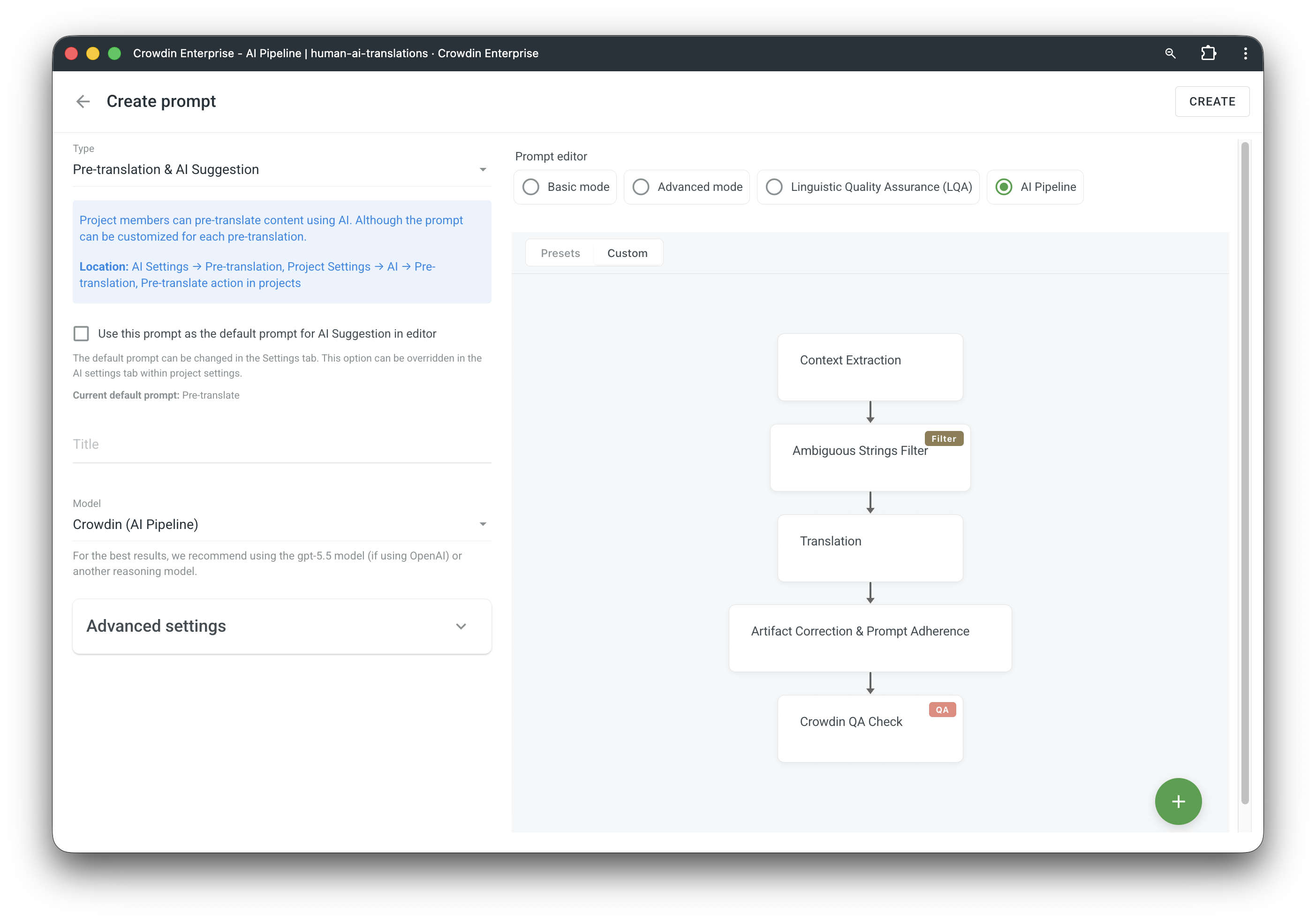
When creating an AI flow, you can either select a pre-configured preset or build a custom flow using the visual node builder.
Choose a Preset
Crowdin provides pre-configured workflows tailored to specific content goals:
- Minimal (Context Preparation → Translation): A cost-optimized flow that uses Context Preparation to analyze project metadata before translating.
- Standard (Context Preparation → Translation → Prompt Adherence → QA Checks): Designed for customer-facing UI.
- Thorough (Context Preparation → Translation → Prompt Adherence → QA Checks → File Consistency): Designed for long-form content, such as documentation, help articles, or legal specs.
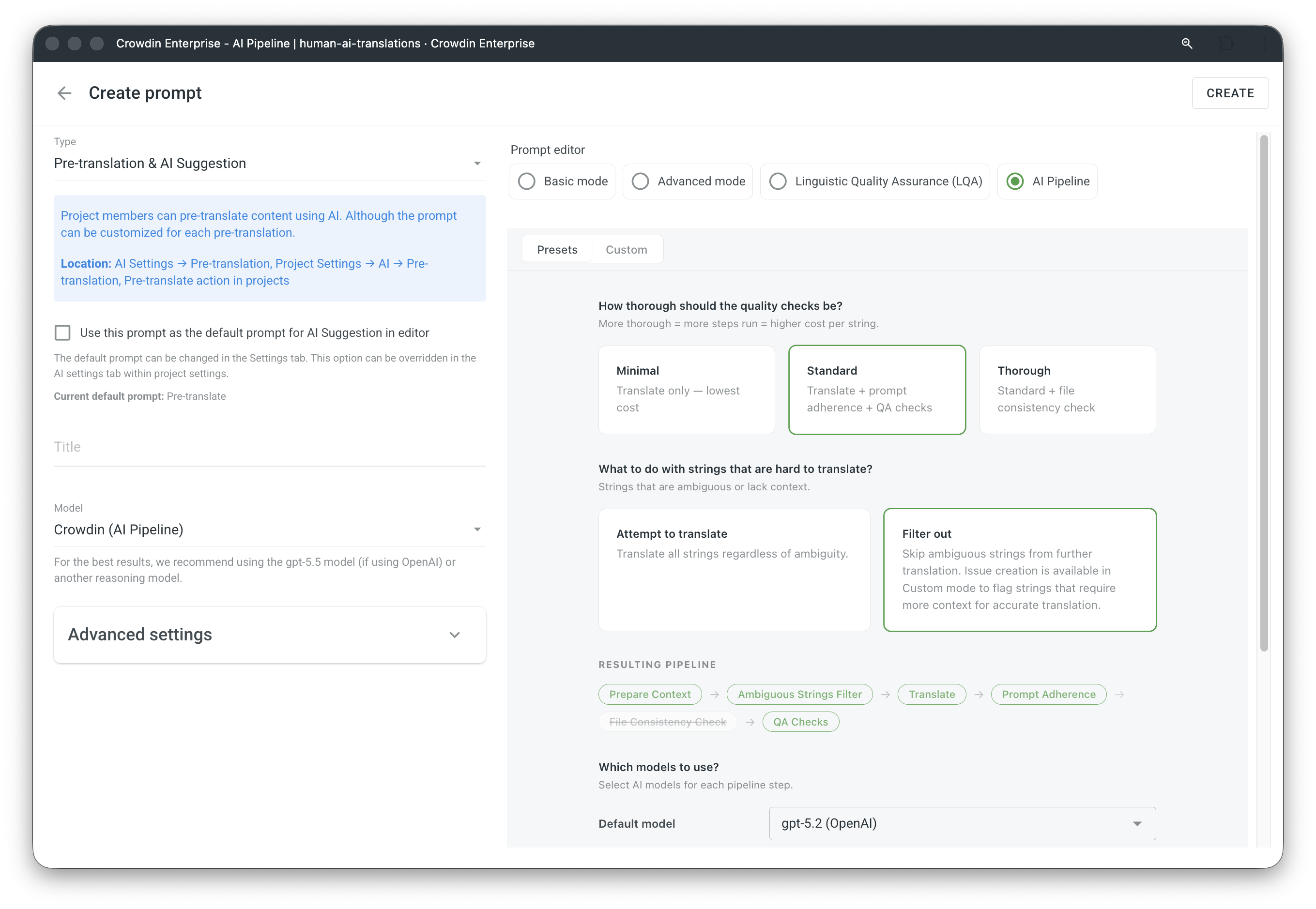
Advanced Preset Settings
Presets offer granular control over how they are executed:
- Ambiguity Filtering: You can enable an Ambiguity Filter for any preset to identify gender-sensitive or multi-meaning words. Instead of guessing, the system flags these strings for review to prevent breaking the user experience.
- Model Selection per Step: You can choose which AI models to use for each individual pipeline step. You can set a Default model for the entire preset or manually override specific steps to optimize quality and cost.
Build a Custom Pipeline
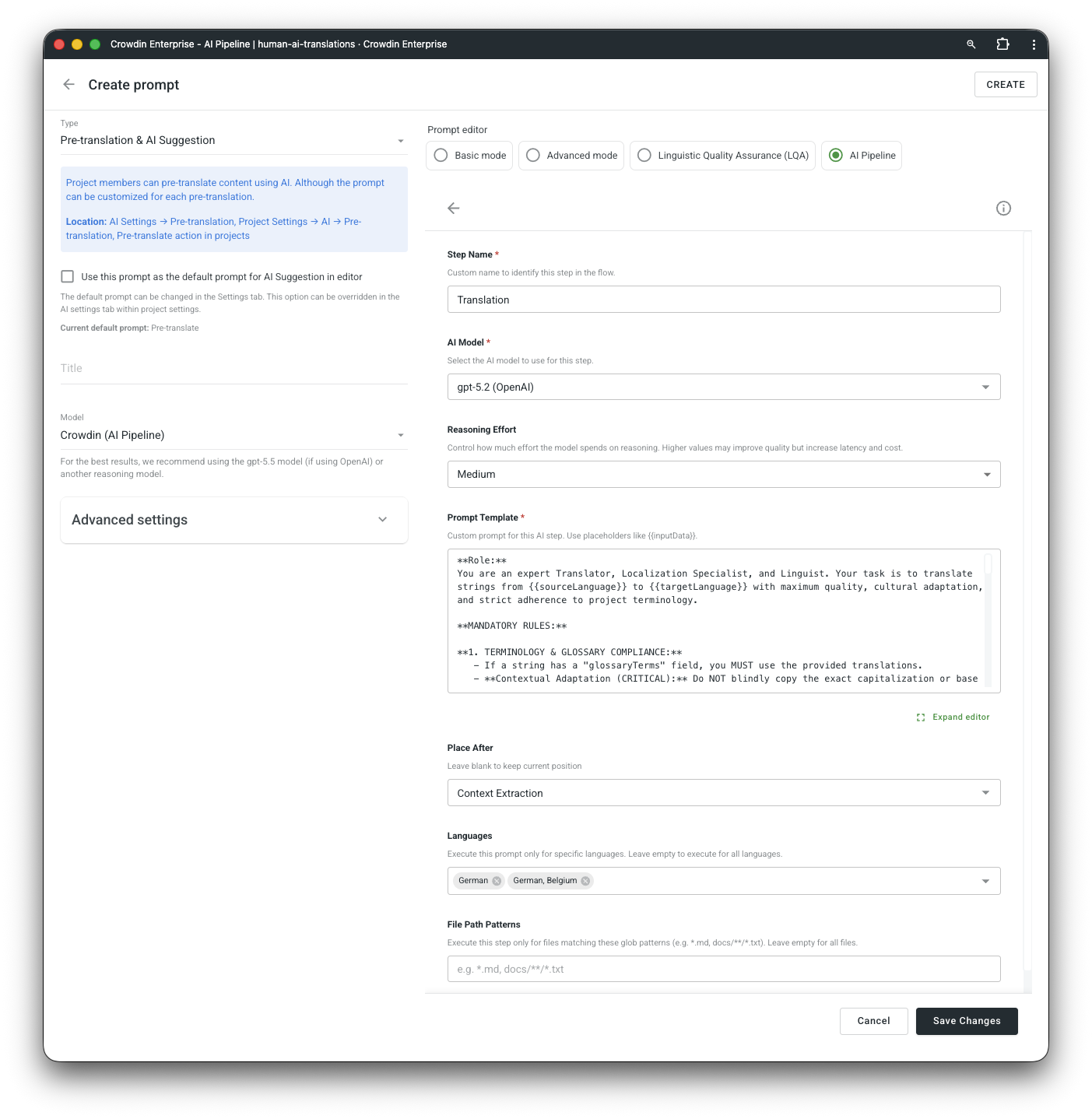
For unique requirements, the visual node builder allows you to build a pipeline from scratch. You have full flexibility to not only decide on the sequence of steps but also to fine-tune the execution parameters for every individual task:
- Edit Step Sequences and Logic: Reorder tasks or add an Ambiguity Filter to any pipeline.
- Select Specific Models and Reasoning Effort: For each step, you can select the specific AI model and control the Reasoning Effort (Low, Medium, High) to balance output quality against latency and cost.
- Fully Customizable Prompts: You can modify the Prompt Template for any step, using placeholders like
{{inputData}}to define exactly how the AI should handle tasks like context extraction from screenshots or rule verification. - Granular Execution Filters: Set specific conditions for when a step should run based on Target Languages or File Path Patterns (using glob patterns like
*.md), ensuring specialized logic only applies to relevant content. - Use the Place After setting to anchor new steps at exact points within your custom workflow.
3. Running Pre-translation with AI Pipeline
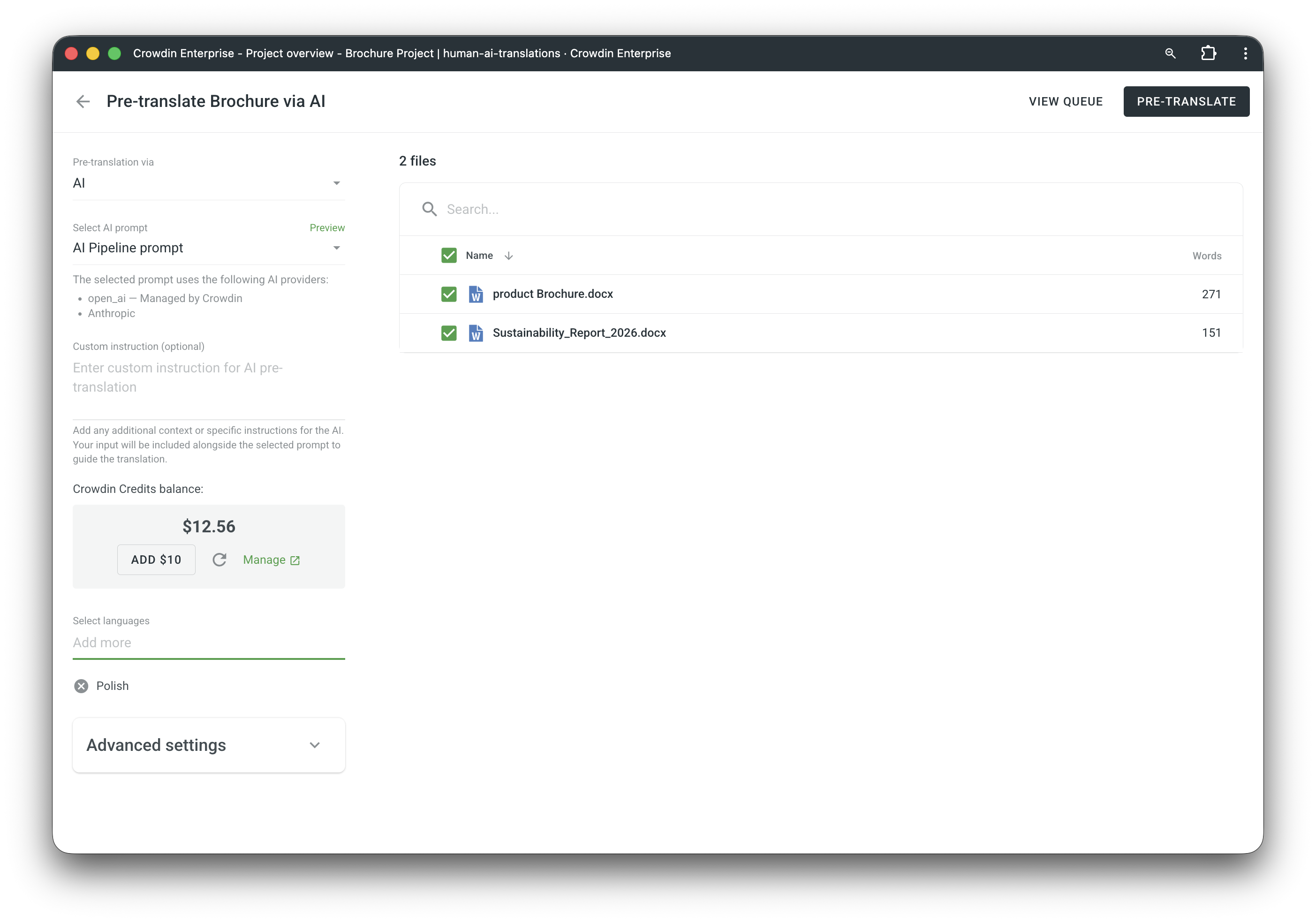
To start translating with an AI Pipeline, simply select AI Pipeline prompt from the dropdown menu when you begin a pre-translation.
The interface lists exactly which AI models are assigned to that specific pipeline. This ensures you know exactly which engines are driving your localization and what the expected logic is before you hit Pre-translate.
4. Execution & Debugging
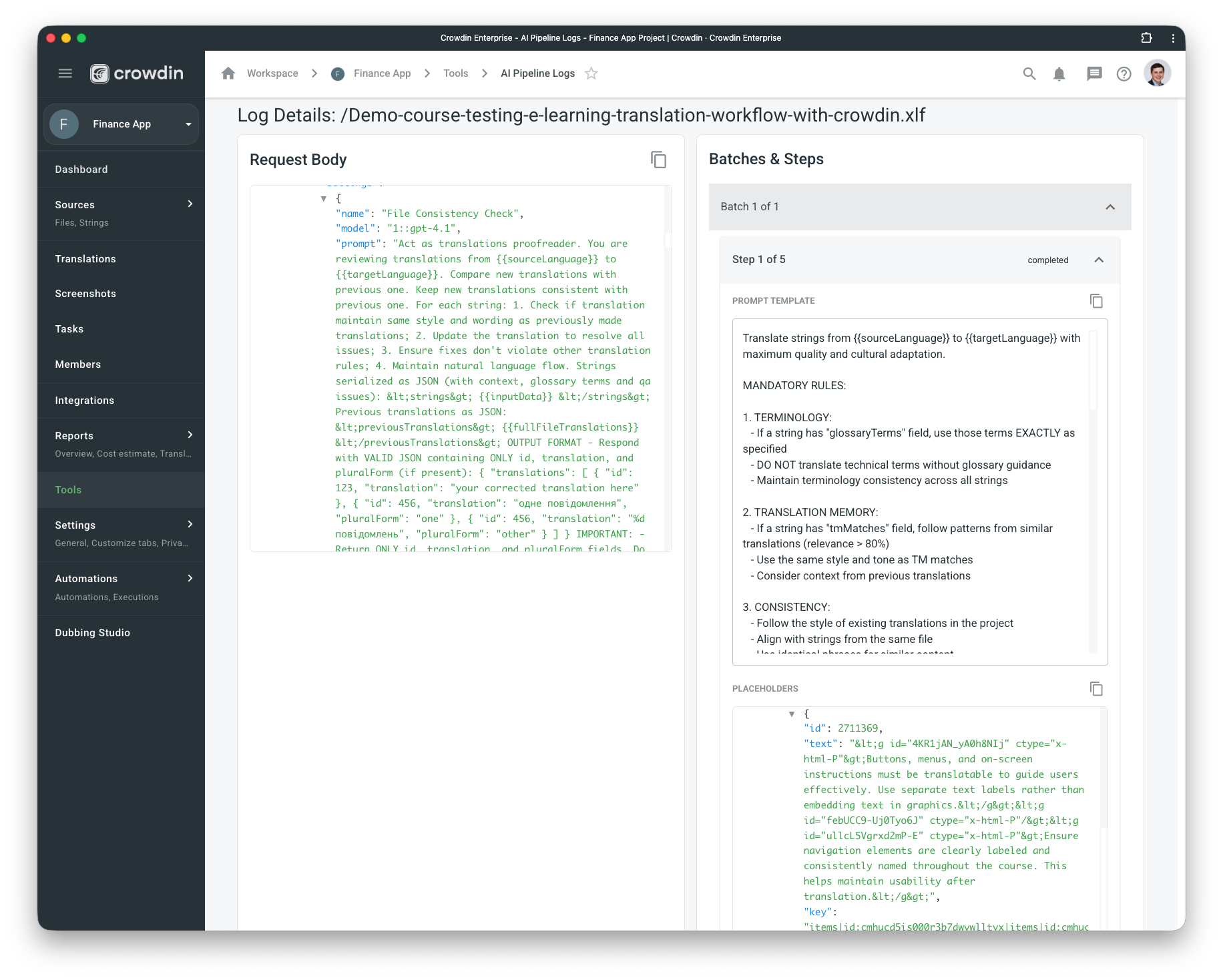
This app includes a dedicated debugging module. If the AI is not delivering the expected result, navigate to Project → Tools → AI Pipeline Logs.
Here, you can inspect the specific "Input" and "Output" of every single step in the chain. This "white-box" approach allows you to see exactly where a hallucination occurred or where a constraint was ignored, allowing for precise tuning of your prompts.
Key Benefits
- Eliminates Prompt Overload – Breaking tasks down reduces the chance of the AI ignoring instructions.
- Self-Correcting – The AI can catch and fix its own hallucinations before the translation reaches you.
- Context Aware – Features like File Consistency Checks ensure new strings fit seamlessly with old translations.
- Brand Consistency – Easily enforce voice and tone into any step of the pipeline.
- Transparent Debugging – Full visibility into every step of the chain via the Tools module.
- Customizable – Build architectures specific to your content type (e.g., UI strings vs. Help Center articles).


Crowdin is a platform that helps you manage and translate content into different languages. Integrate Crowdin with your repo, CMS, or other systems. Source content is always up to date for your translators, and translated content is returned automatically.
Learn More