
Require admin approval for new devices before users can access the organization
Requires Crowdin account
Device Approvals

This app enables Crowdin Enterprise administrators to require device approval before users can access the organization. When enabled, all users (except admins) logging in from a new or unrecognized device must request approval. Access is granted only after an administrator manually approves the device.
Why use Device Approvals?
Enterprise clients typically use SAML to strictly control access for internal managers and employees. However, a significant security gap often exists for external contributors—such as freelancers, vendors, and linguists—who rarely have corporate SAML accounts.
While the "gold standard" for security involves providing vendors with virtual cloud desktops behind a SAML IdP, this is not always logistically possible. This app bridges that gap by implementing Device Verification, a critical security feature typically found in major Identity Providers.
Key Benefits:
- Closes the SAML Gap: Secures access for freelancers who log in directly with standard credentials.
- Device Fingerprinting: When a linguist signs in, a security token is stored on their device to verify future access.
- Audit Visibility: Administrators gain full visibility into exactly which devices are accessing organization data.
Useful For
- Security-conscious organizations looking to mitigate risks associated with external vendor access.
- Enterprise environments requiring strict device management and access auditing protocols.
- Remote teams where administrators need to verify that logins are coming from authorized personal computers.
How It Works
1. Installation
Install the app and ensure it is available to admins only (do not grant access to all organization members).
2. Configuration
Open Organization Settings and locate the app in the left-hand menu under Device Approvals.
- Navigate to the Settings tab.
- Enable the device approval feature.
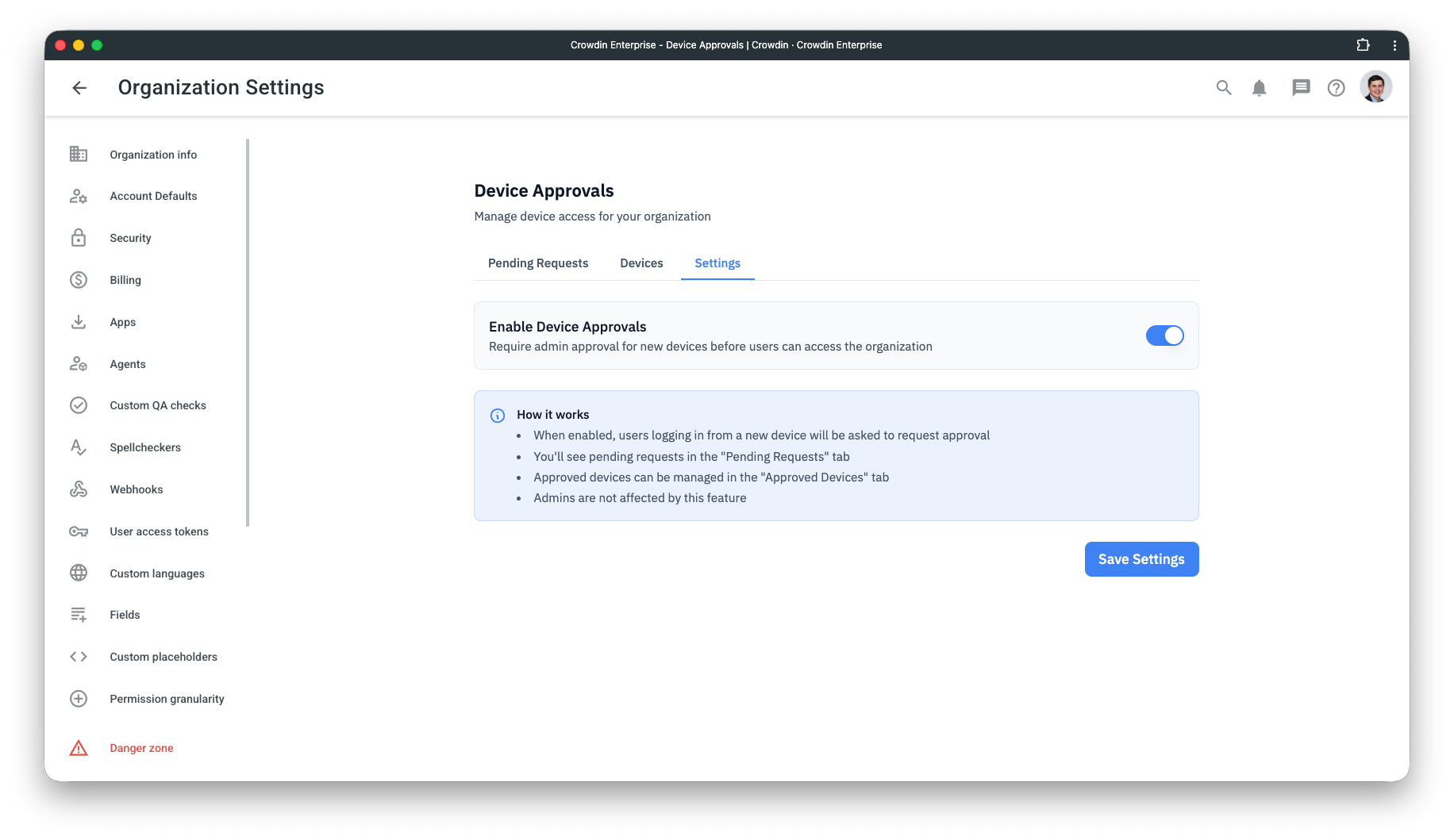
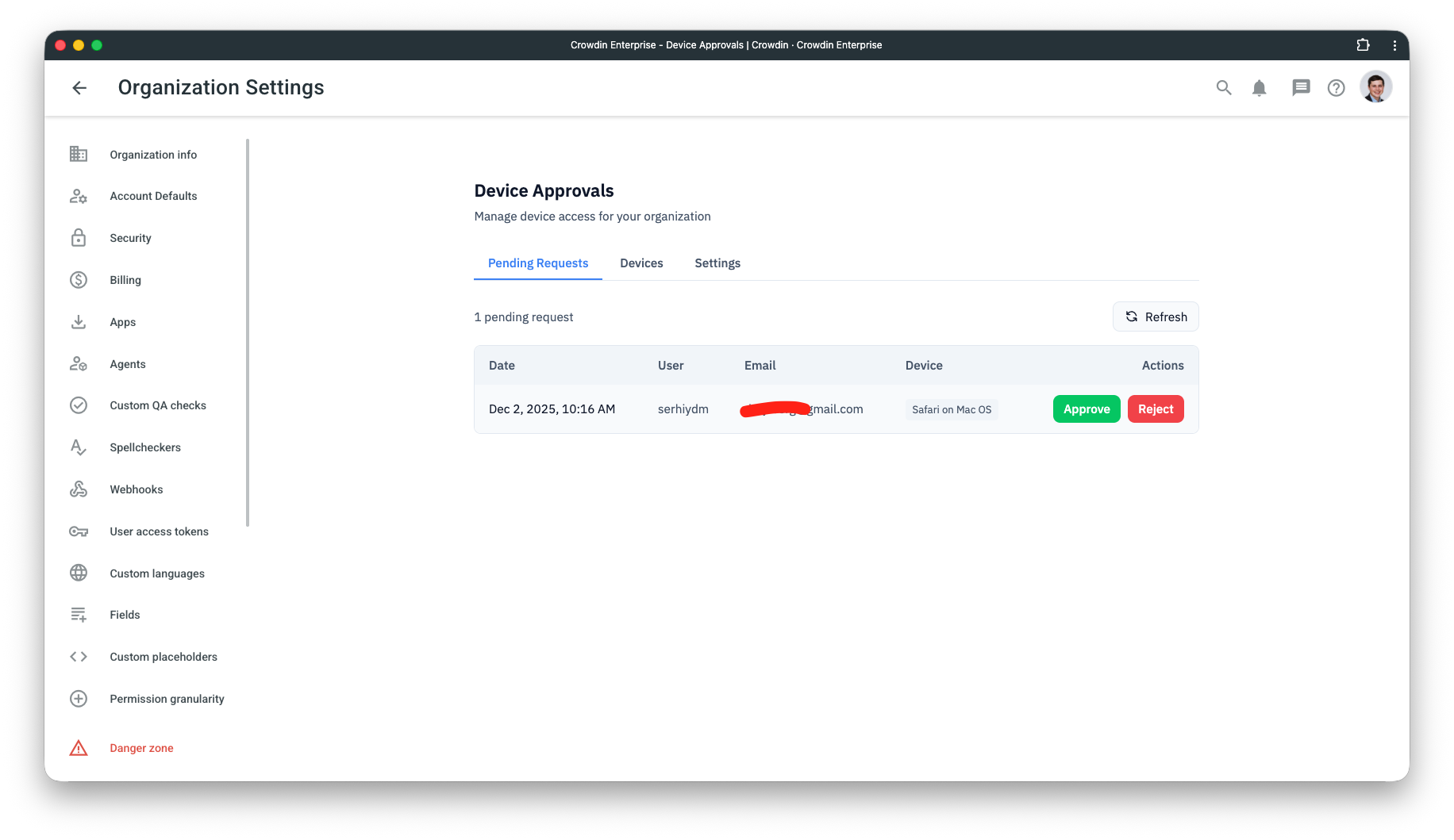
Note: Once enabled, all existing and new users (excluding admins) will be prompted to request device approval the next time they access the organization from an unrecognized device.
3. User Experience
When a user attempts to access the organization from a new device:
- Block: They see a "Device Not Recognized" screen displaying their browser and OS information.
- Request: They click "Request Approval" to submit a request to administrators.
- Status: The user sees an "Approval Pending" status.
- Access: Once approved, they are automatically redirected to the dashboard. If rejected, they receive an "Access Denied" message.
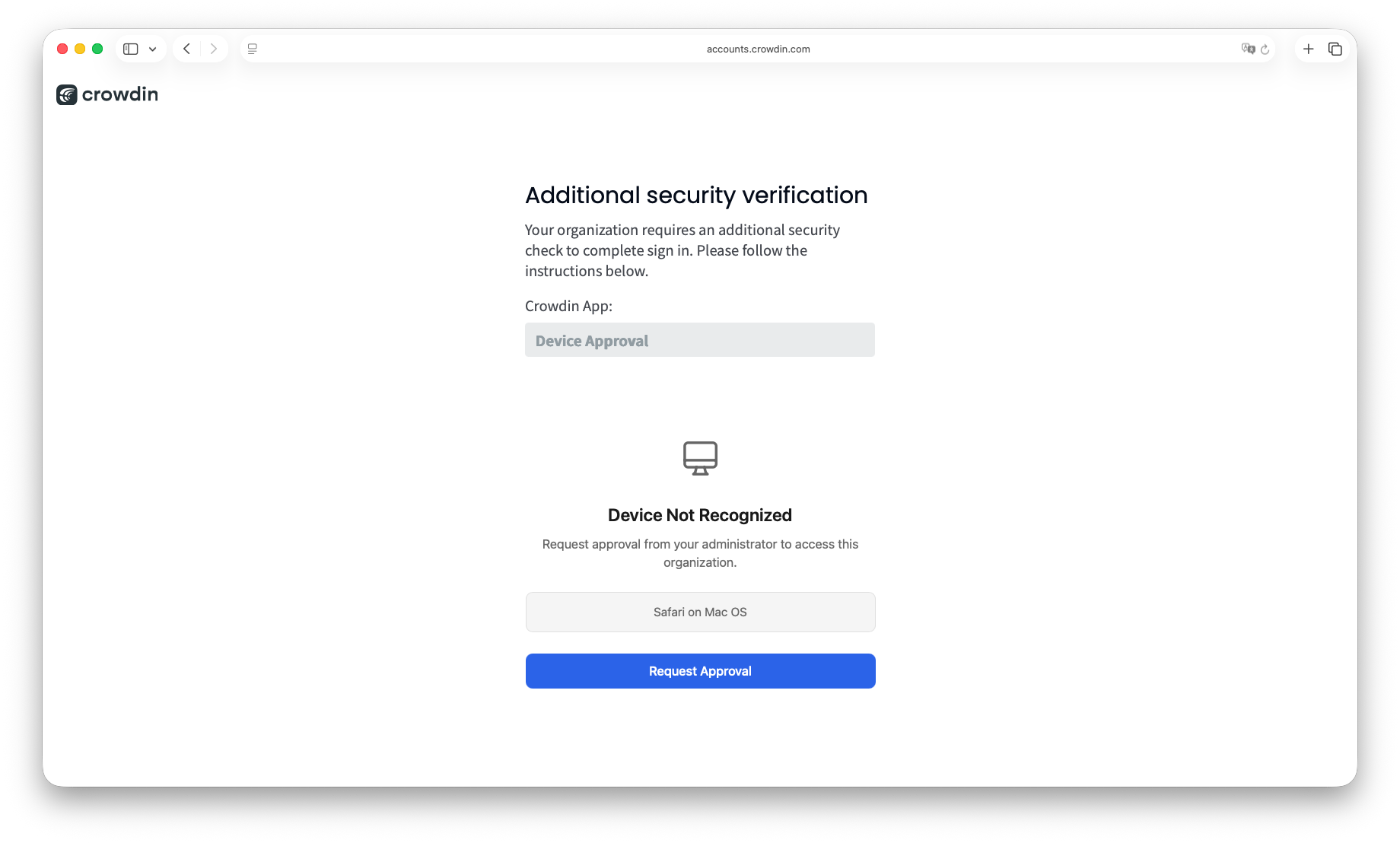
Important: Device identification uses a unique token stored in the browser's local storage. If a user clears their browser data (cookies/local storage) or uses Incognito mode, they will be treated as a new device and must request approval again.
4. Admin Management
The admin panel provides three main views:
- Pending Requests: View incoming requests including the user's name, email, and device info. You can Approve or Reject requests here.
- Devices: A log of all processed devices (both approved and rejected). You can revoke access by deleting a device or changing its status here.
- Settings: The master switch to enable or disable the approval workflow for the organization.
Important Notes
- Admins are Exempt: Organization administrators are never blocked by device approvals to ensure they can always manage the system.
- Device Tracking: Each device is identified by a unique, secure token stored in the browser.
- Session Continuity: Once a device is approved, the user can continue accessing the organization from that device without interruption until the token is cleared or revoked.


Crowdin is a platform that helps you manage and translate content into different languages. Integrate Crowdin with your repo, CMS, or other systems. Source content is always up to date for your translators, and translated content is returned automatically.
Learn More- —Crowdin Enterprise
Released on Dec 2, 2025
Updated on Dec 18, 2025
Published by Awesome Crowdin
Identifier:device-approvals