
Translate and localize files stored in your Google Cloud Storage bucket
Requires Crowdin account
Google Cloud Storage localization with Crowdin

Google Cloud Storage is a Crowdin project integration that connects a Google Cloud Storage bucket to your localization project. Source files in your bucket are uploaded to Crowdin for translation, and finished translations are written straight back into the same bucket — no manual download/upload, and no need to wire up your own pipeline.
Files are uploaded as-is: Crowdin auto-detects the file format, so anything Crowdin supports (JSON, XML, Markdown, .strings, .po, .xliff, and more) works out of the box. New and updated objects are detected automatically and can be synced on a schedule, in both directions.
What you get
Two-way sync between a GCS bucket and your Crowdin project
Automatic format detection — no per-file configuration
Scheduled (cron) sync in both directions, with New / Updated badges in the file tree
A configurable working directory so you can scope the integration to one folder of a bucket
Fully configurable translation file layout using the same placeholders you already use in Crowdin
Setting it up
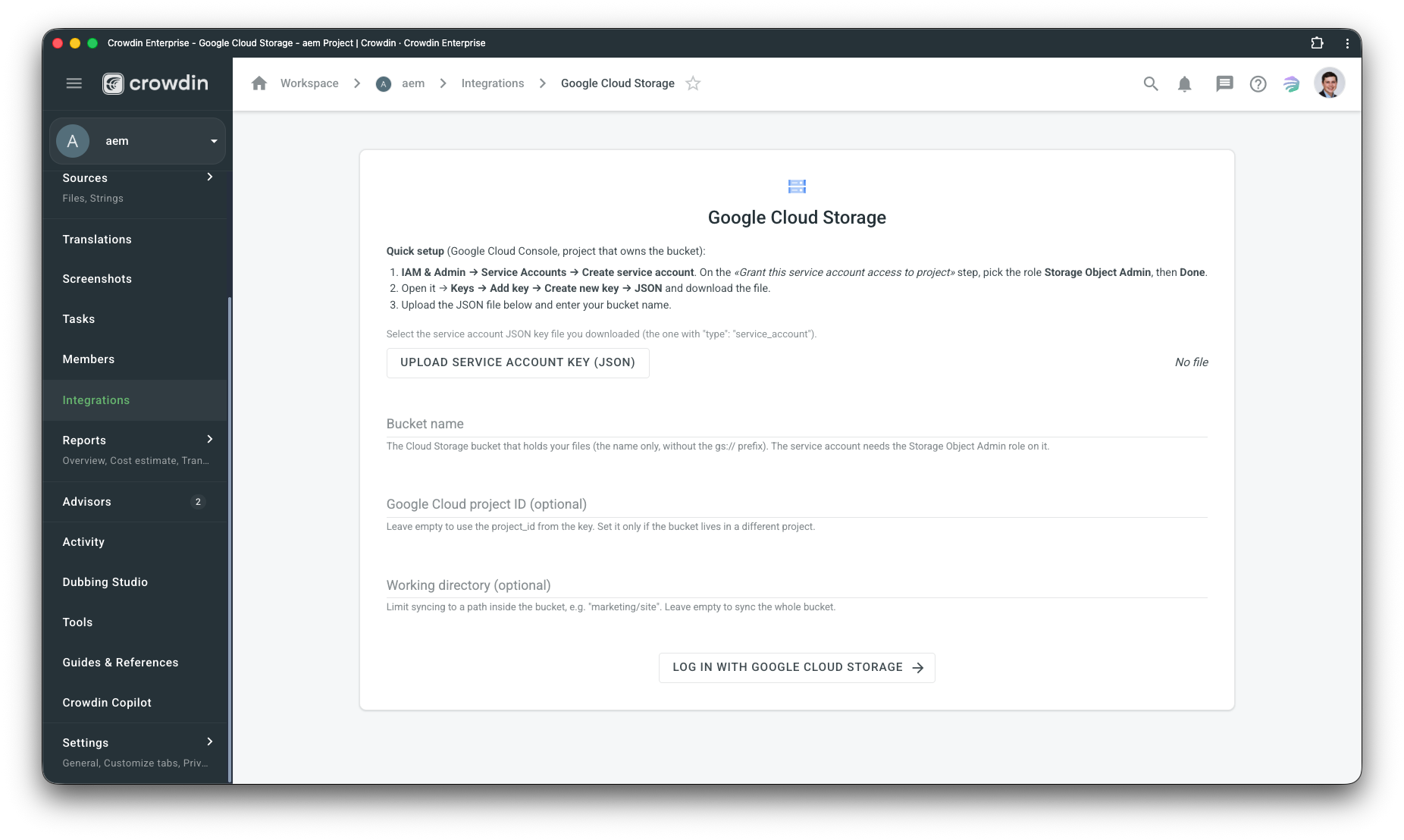
In the Google Cloud Console, open IAM & Admin → Service Accounts → Create service account. On the "Grant this service account access to project" step, assign the Storage Object Admin role, then click Done.
Open the new service account → Keys → Add key → Create new key → JSON and download the key file.
In Crowdin, add the integration, upload that JSON key, and enter your bucket name. Optionally set a Google Cloud project ID (defaults to the one in the key) and a working directory (an object prefix such as
marketing/site) to limit the scope.
How translations are written back (export patterns)
Under Settings you choose where translated files land in the bucket. Pick a ready-made preset or switch to Advanced and type a full path template. The placeholders are exactly the same ones Crowdin uses for "Resulting file after translations export" — the same syntax as in crowdin.yml and the Crowdin CLI — so there's nothing new to learn. A live preview shows where a sample file will land.
Supported placeholders in advanced mode: %original_path%, %original_file_name%, %file_name%, %file_extension%, %language%, %locale%, %locale_with_underscore%, %two_letters_code%, %three_letters_code%, %android_code%, %osx_code%, %osx_locale%. Language values come from your project's target languages, so organization-custom languages work too. Translation outputs are tagged on write, so they're never re-ingested as new source files.
Learn more about file placeholders and export patterns in the Crowdin documentation and the Crowdin CLI docs.
Google Cloud Storage allows world-wide storage and retrieval of any amount of data at any time. It's used for a range of scenarios including serving website content, storing data for archival and disaster recovery, or distributing large data objects to users via direct download.
Features at a glance
- Quick translation of your files stored at Google Cloud Storage.
- Manual content synchronization before and after translation.
- Auto-sync of source content and translations.
- Quick sync and translation of even minor content updates, like a new sentence or a changed word.
Setting up the Google Cloud Storage connector
After installing the application, you will find it in your project Integrations section.
Follow the instructions on the screen to connect your Google Cloud Storage account.
Manual synchronization
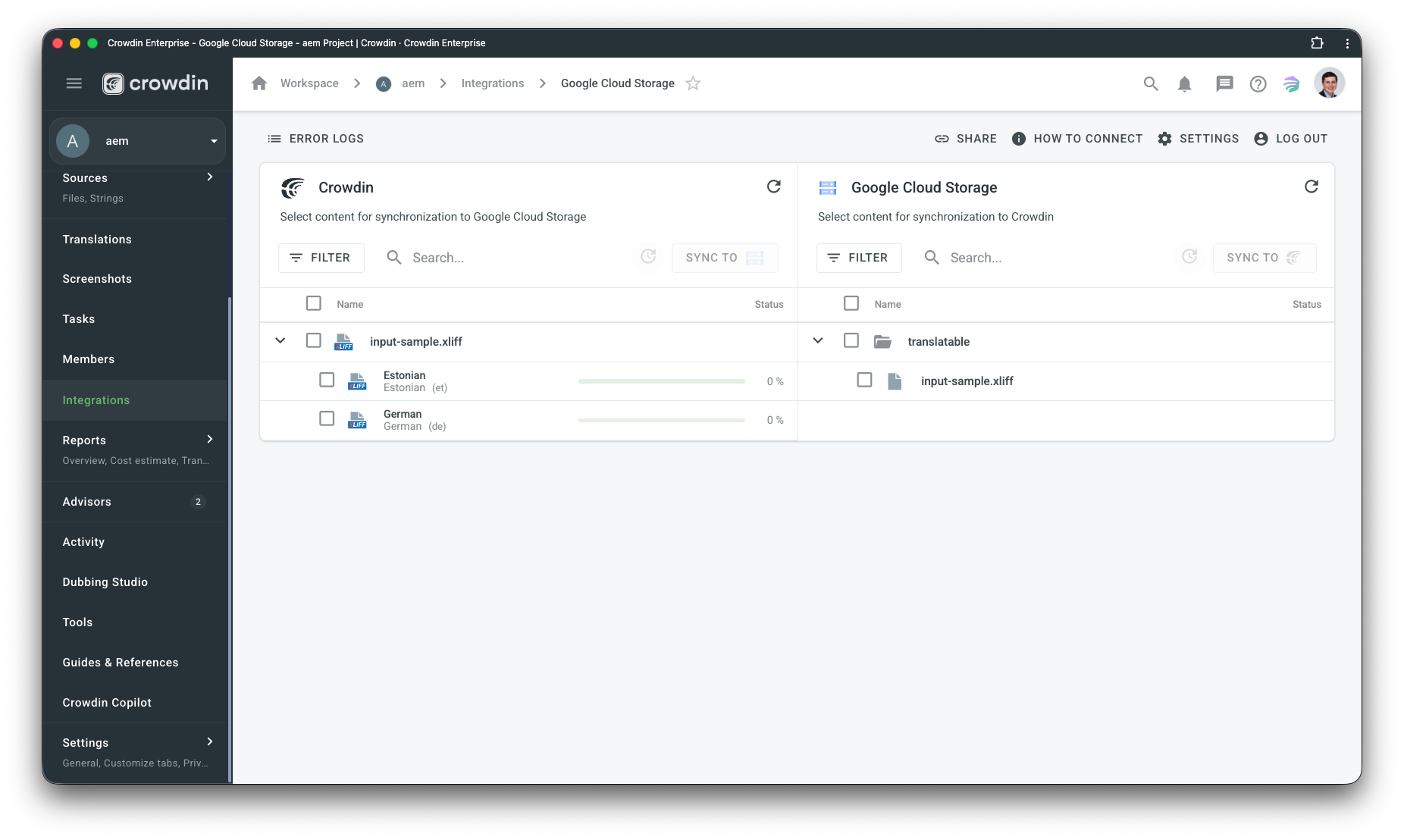
To import content for translation from Google Cloud Storage, follow these steps:
- Open the Google Cloud Storage integration.
- In the Google Cloud Storage section (right panel), select the files that should be translated.
- Click Sync.
To export translations to Google Cloud Storage, follow these steps:
- Open the Google Cloud Storage integration.
- In the left section, select the files that will be synced to Google Cloud Storage.
- Click Sync to Google Cloud Storage.
Auto content synchronization
To automatically import content for translation from Google Cloud Storage choose files and click Scheduled sync in the right panel in the Google Cloud Storage integration. The file you chose will be pushed once at a scheduled time (by default, it is done once a day). The same button is used to export translated files from Crowdin to Google Cloud Storage (in the left panel). You may disable this by clicking Disable Sync.


Crowdin is a platform that helps you manage and translate content into different languages. Integrate Crowdin with your repo, CMS, or other systems. Source content is always up to date for your translators, and translated content is returned automatically.
Learn More- —Crowdin Enterprise
- —crowdin.com
Released on Jun 17, 2026
Updated on Jun 17, 2026
Published by Crowdin
Identifier:google-cloud-storage