Requires Crowdin account
Translate Your Google Private Drive Files

Unlock a faster localization workflow by connecting your Google Private Drive directly to Crowdin. This integration allows you to translate Google Private Drive files without the manual hassle of downloading and re-uploading files. By using your own Google Cloud credentials, you maintain total privacy and security over your corporate data.
How to Install and Configure the Google Drive App for Crowdin
Follow these steps to set up your private Google Drive integration.
1. Install the App
- Find Google Private Drive in the Crowdin Store
- Click Install.
2. Create Google Cloud Credentials
To connect the app, you need to generate OAuth 2.0 credentials in the Google Cloud Console:
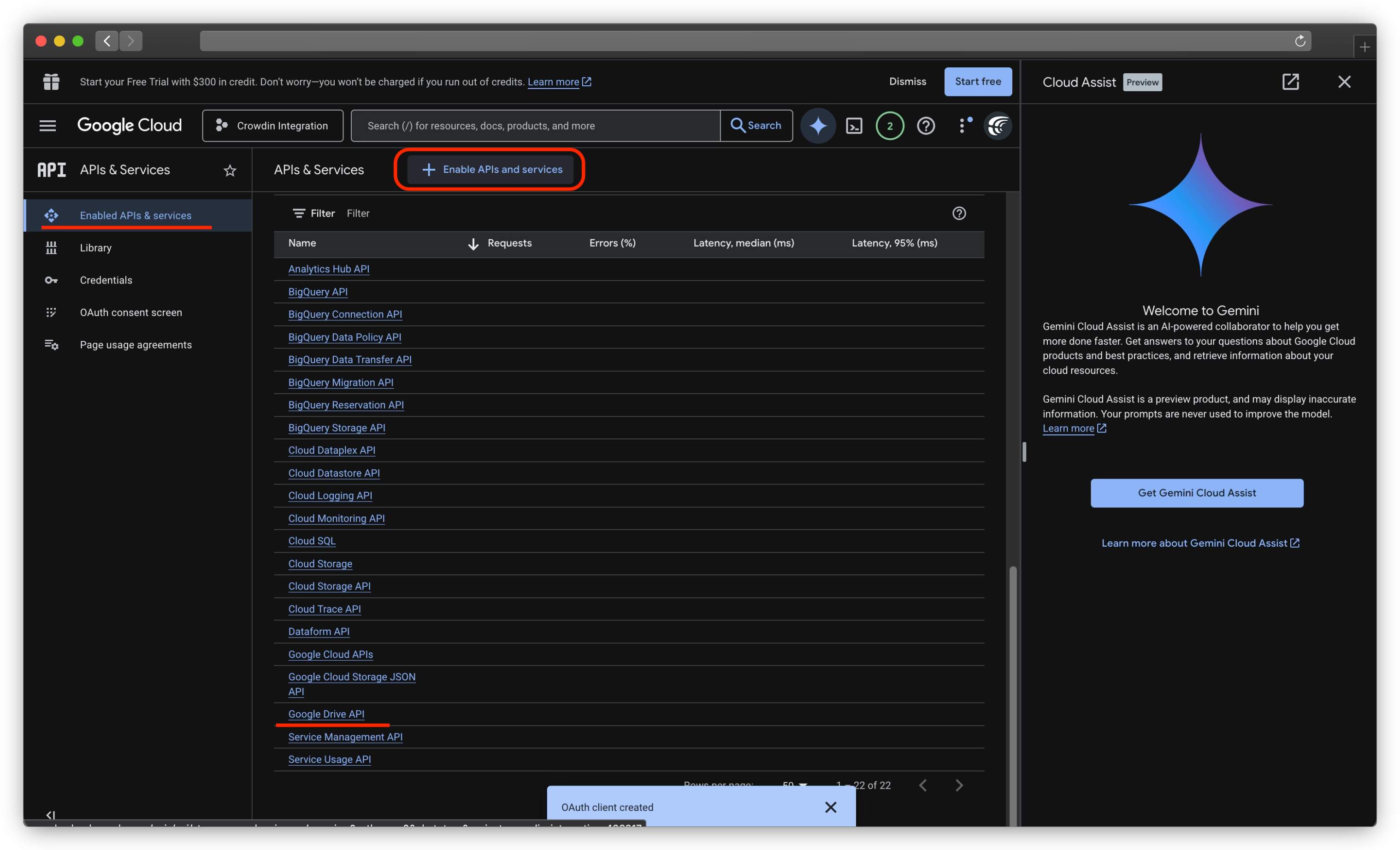
1. Enable Google Drive API: In APIs& Services tab, go to Enabled APIs & services, click Enable APls and services button and add Google Drive API.
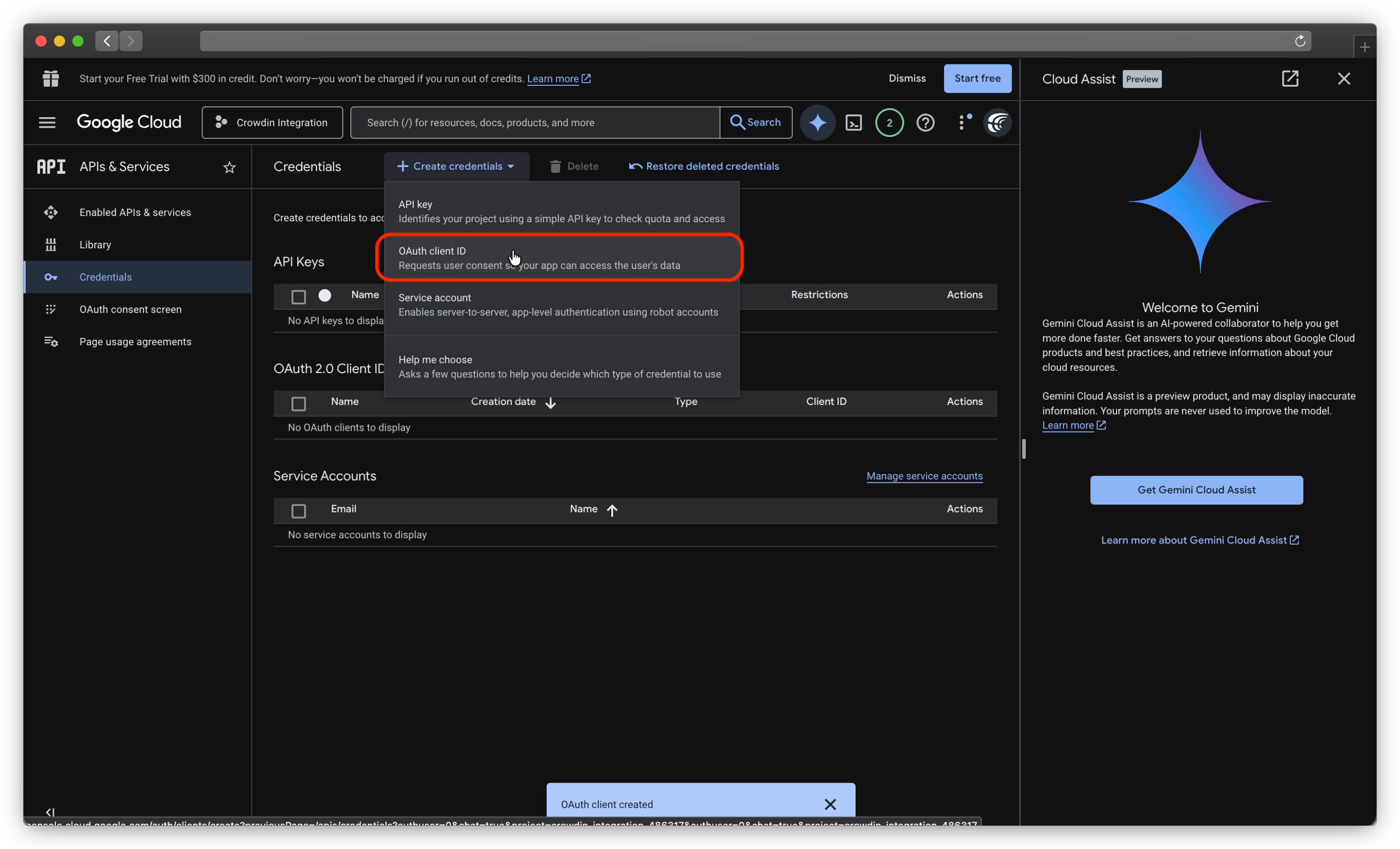
2. Create Credentials: Go to APIs & Services > Credentials and create an OAuth client ID. Select Web application as the type.
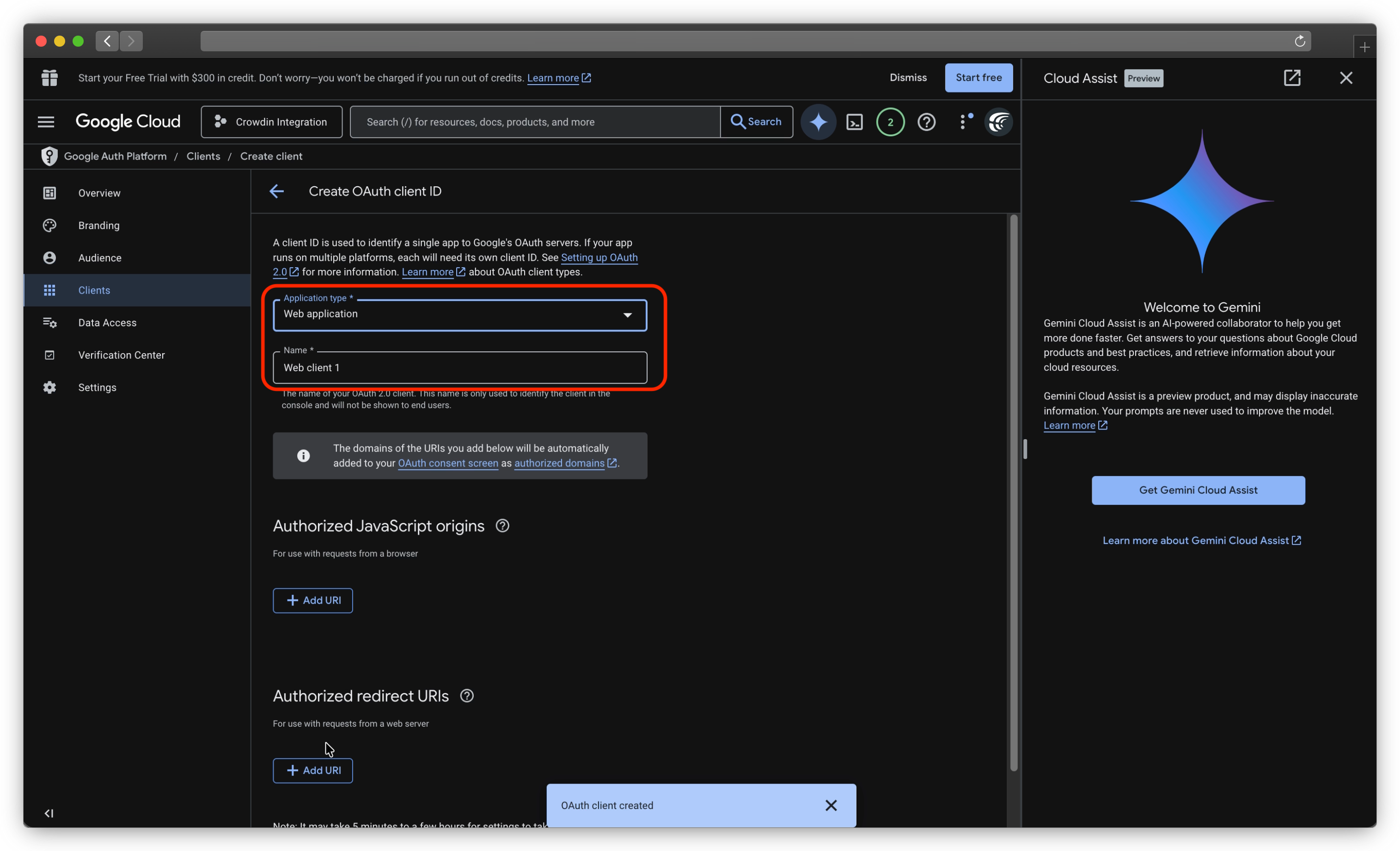
3. Authorized Redirect URL: Add this exact URL: https://google-private-drive.app.crowdin.net/oauth/code
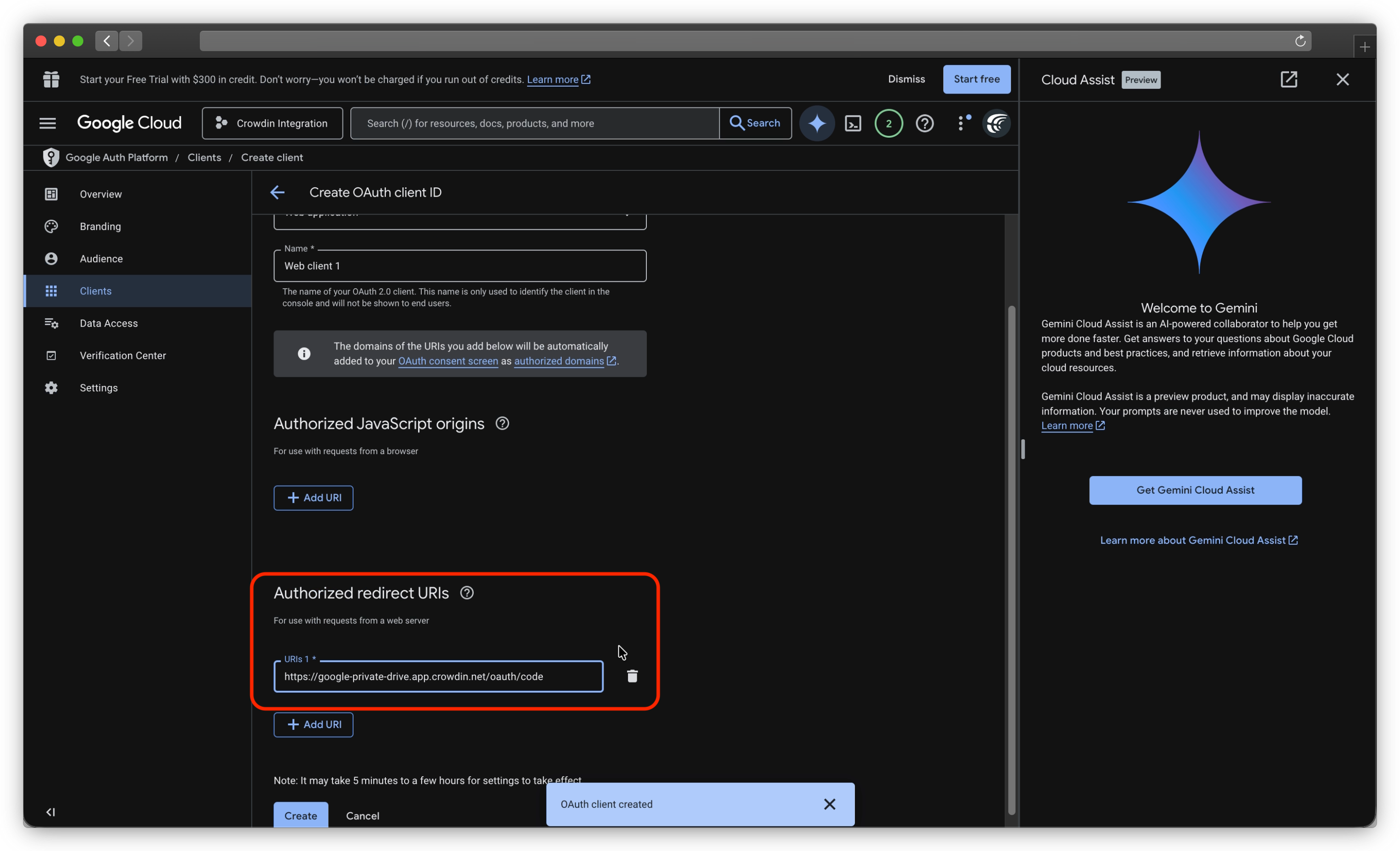
4. Configure Scopes: Ensure your project has the following scopes enabled:
.../auth/drive(See, edit, create, and delete all files).../auth/userinfo.email(See your primary email address)
5. Copy Credentials: Save your Client ID and Client Secret.
For a detailed walkthrough on generating these, see Google’s official guide.
3. Authorize the App
1. Open the Google Drive app within your Crowdin project.
2. Enter the Client ID and Client Secret you just generated.
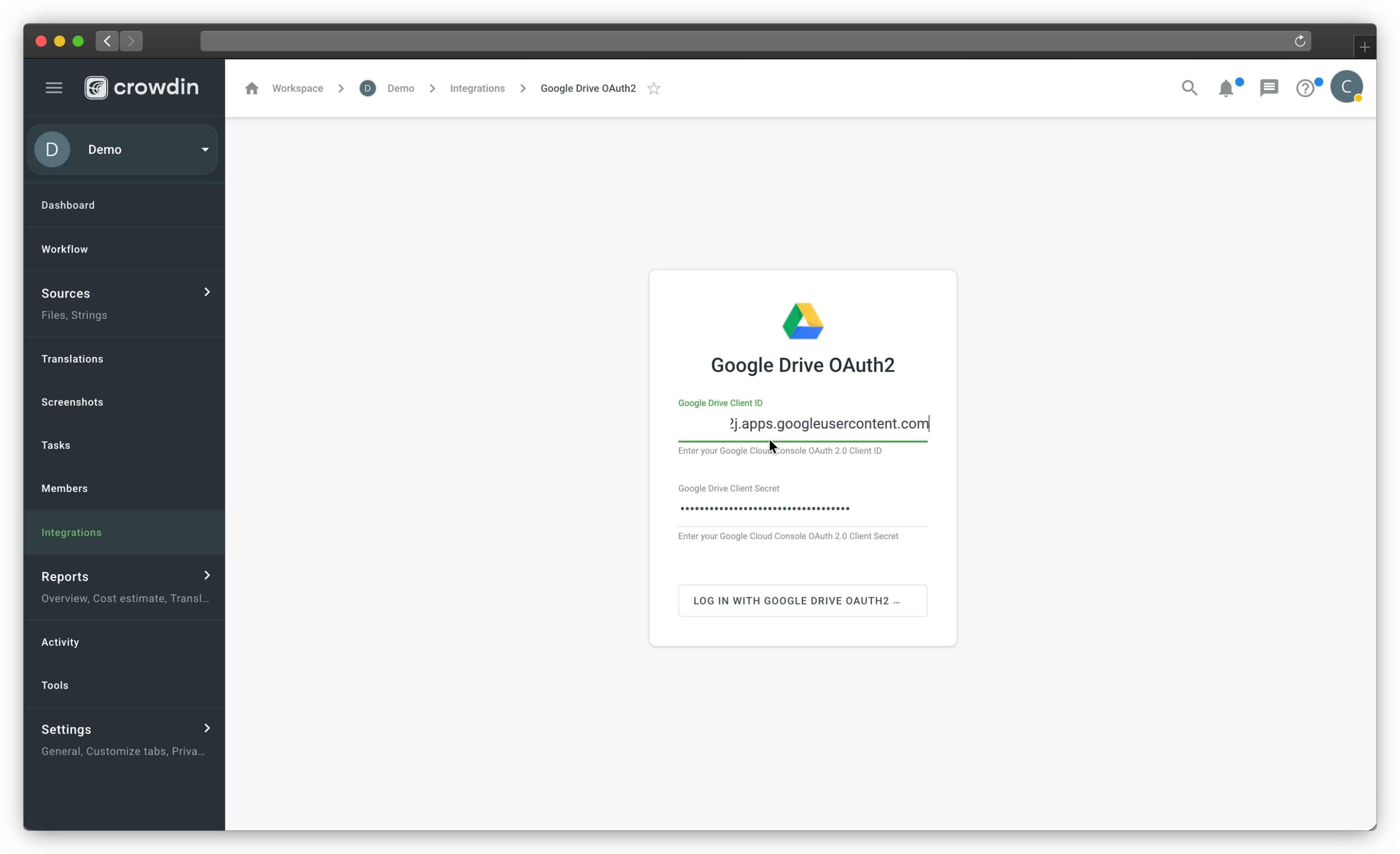
3. Follow the prompts to authorize access.
Managing User Access (Optional)
If your Google Cloud project is in "Testing" mode or has restricted settings: Navigate to the OAuth consent screen in Google Cloud.
Under Test users, click Add Users and enter the email addresses of the team members who need to use the app.


Crowdin is a platform that helps you manage and translate content into different languages. Integrate Crowdin with your repo, CMS, or other systems. Source content is always up to date for your translators, and translated content is returned automatically.
Learn More- —Crowdin Enterprise
- —crowdin.com
Released on Feb 17, 2026
Updated on May 29, 2026
Published by Crowdin
Identifier:google-private-drive