
Google Translate LLM uses Google's Translation LLM model with glossary and Translation Memory support for high-quality machine translation.
Requires Crowdin account
This app integrates Google Cloud Translation API v3 with Crowdin, using Google's Translation LLM model. Unlike the standard Neural Machine Translation, Translation LLM is a large language model that can accept additional context: your glossary terms and reference translations from Translation Memory. This helps produce translations that follow your terminology and style.
What You Need

Before installing the app, you need a Google Cloud account with:
- A project with Cloud Translation API enabled
- A service account with proper permissions
- A Cloud Storage bucket (required for glossary features)
Google Cloud Setup
1. Create a Google Cloud Project
Go to Google Cloud Console and create a new project, or use an existing one.
2. Enable the Cloud Translation API
In your project, go to APIs & Services, then Library. Search for "Cloud Translation API" and enable it.
3. Create a Service Account
Go to IAM & Admin, then Service Accounts. Click "Create Service Account" and give it a name.
Grant the following roles to the service account:
Cloud Translation API Editor(roles/cloudtranslate.editor) - required for translation and managing glossaries (create, delete)Storage Object Admin(roles/storage.objectAdmin) - required to upload, update, and delete glossary files in the bucket
After creating, click on the service account, go to Keys tab, click Add Key, then Create new key. Select JSON format and download the file. You will upload this file to Crowdin.
4. Create a Cloud Storage Bucket
Go to Cloud Storage, then Buckets. Click "Create" and choose a name and region. The region should match the location you will select in Crowdin (default is us-central1).
No special bucket permissions are needed if you granted Storage Object Admin role to the service account at the project level. If you prefer bucket-level permissions, grant the service account storage.objects.create and storage.objects.delete permissions on the bucket.
Installation in Crowdin
Step 1: Install the App
Install Google Translate LLM from the Crowdin Store in your organization.
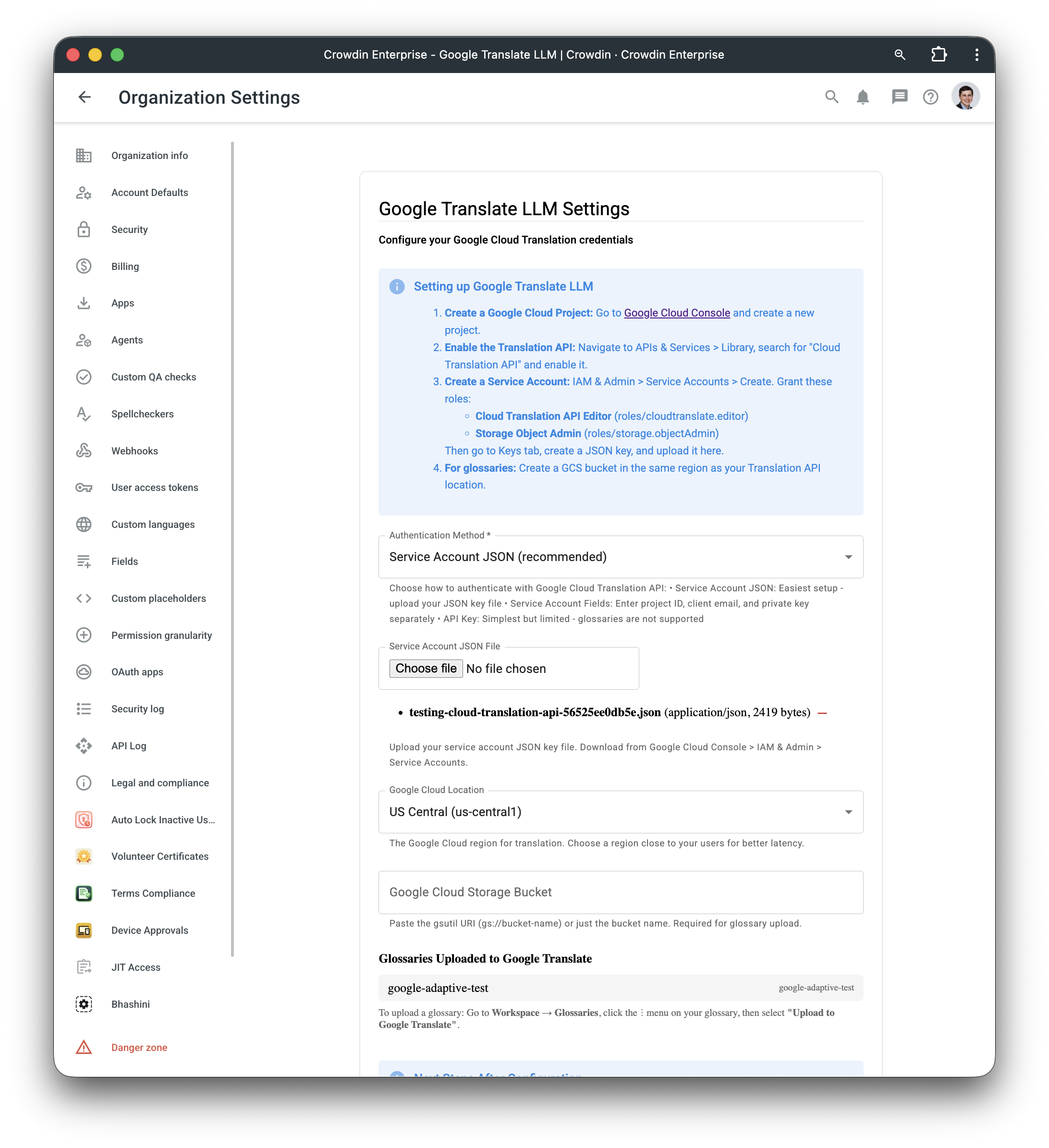
Step 2: Configure Credentials & Default Settings
Go to your organization settings, find the app, and configure:
Authentication Method: Choose "Service Account JSON" and upload the JSON key file you downloaded earlier.
Google Cloud Location: Select the region closest to your users. Default is us-central1. This must match where your glossaries will be stored.
Google Cloud Storage Bucket: Enter your bucket name (e.g., my-bucket) or gsutil URI (e.g., gs://my-bucket). Required for glossary upload.
Default Translation Settings: These settings apply to all projects in your organization by default:
- Use Translation Memory as Reference: When enabled, the app searches your TMs before translating. Matching segments are sent to Google as reference examples.
- Minimum TM Match (%): Only TM matches above this threshold are used as reference. Default is 70%.
- Glossaries to use for translation: Select which glossaries to use by default.
- Ignore case in glossary matching: When enabled, glossary terms match regardless of case.
- Use contextual glossary matching: When enabled, Google uses AI to decide when to apply glossary terms based on context.
Save the configuration. These defaults will be used for all projects unless overridden at the project level.
Step 3: Create an MT Engine
Go to Workspace, then Machine Translation. Create a new engine and select Google Translate LLM. This engine will be available in your projects.
Step 4: Upload Glossaries (Optional)
If you want to use glossaries:
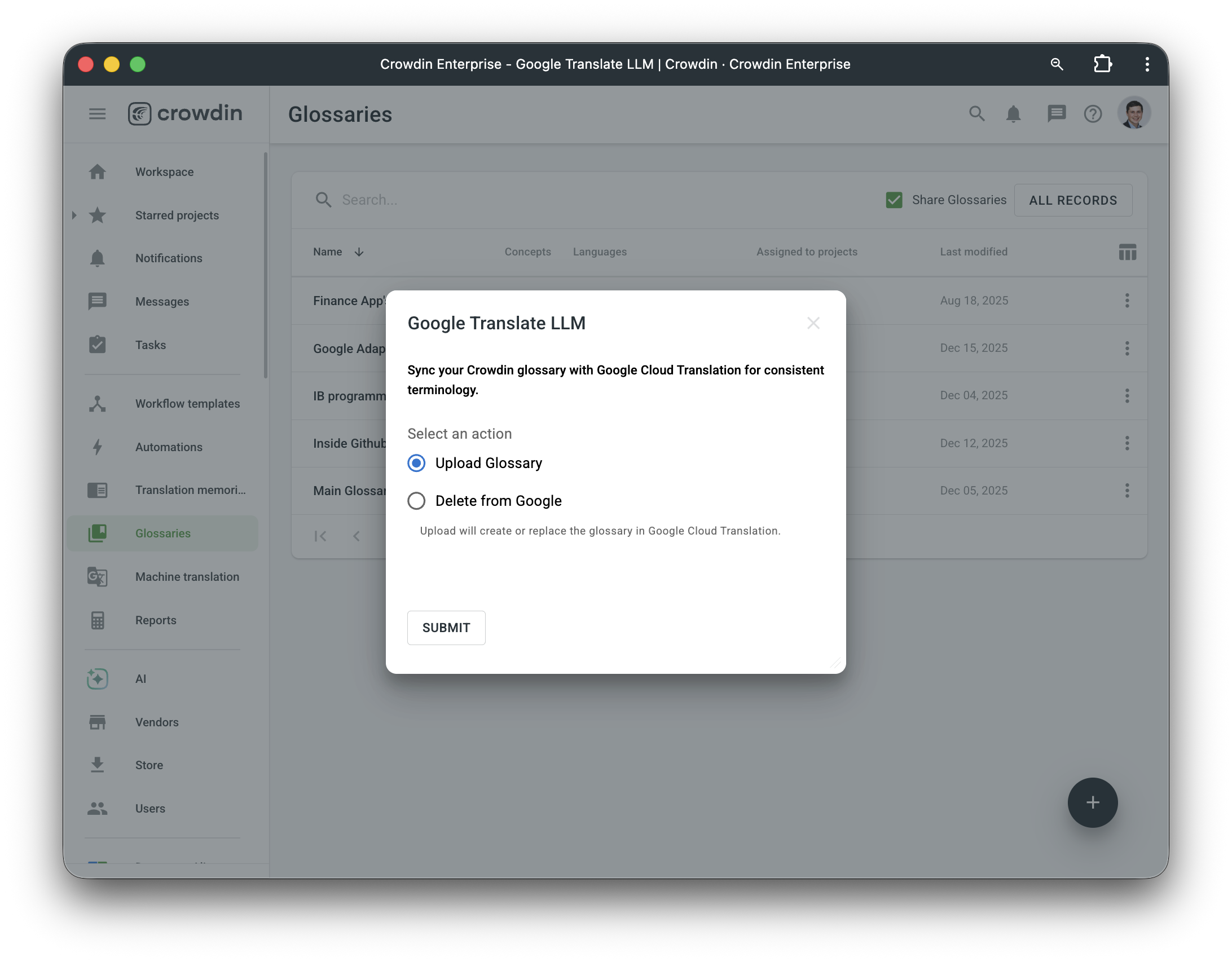
- Go to Workspace, then Glossaries
- Click the three-dot menu on your glossary
- Select "Upload to Google Translate"
The glossary must have at least two languages. After upload, you will see it listed in the app settings.
Note: Google glossaries are language-pair specific. If your glossary has English and German, it will only work for EN↔DE translations.
Step 5: Override Settings for Specific Projects (Optional)
By default, all projects use the organization-level settings configured in Step 2. No additional configuration is required.
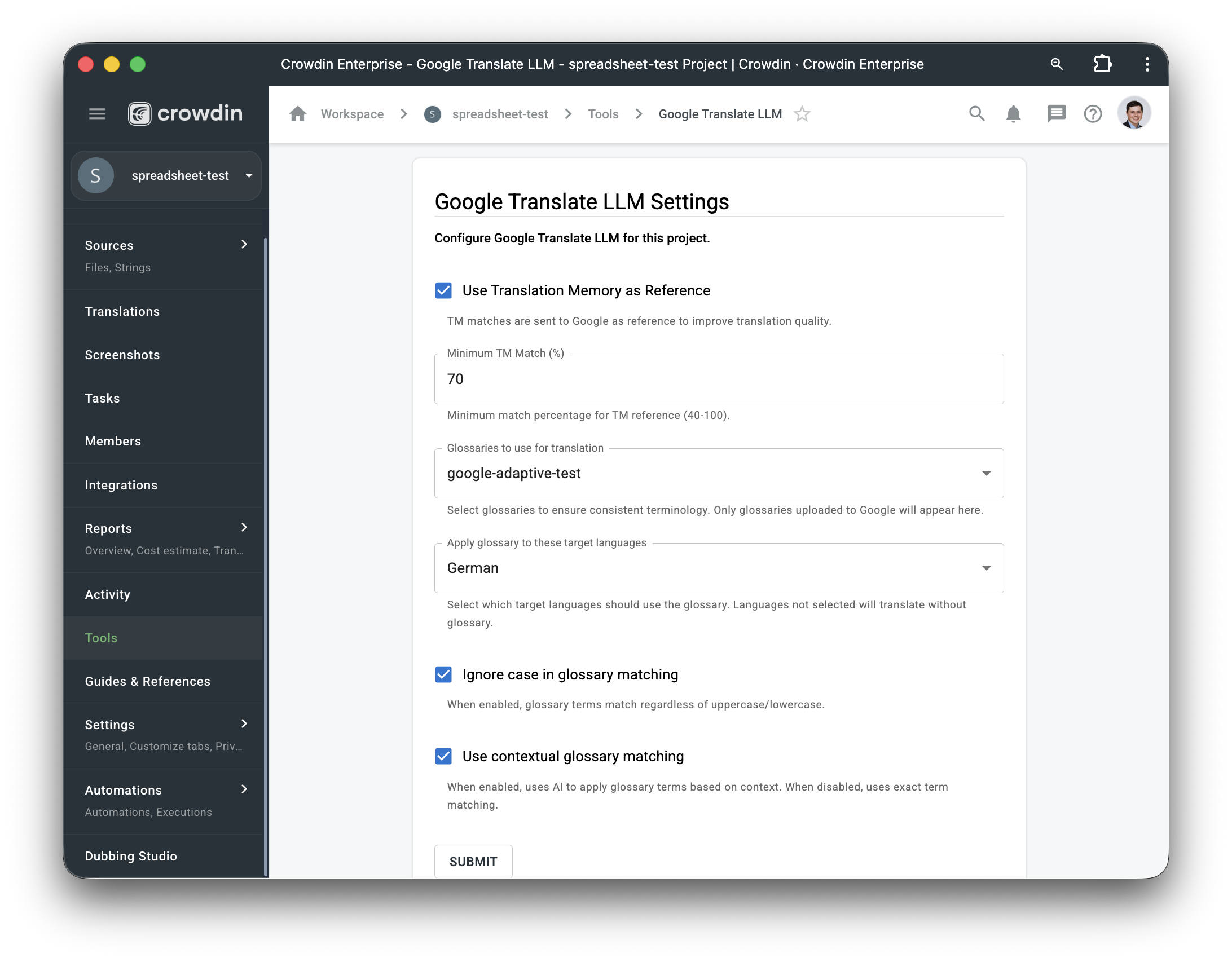
If you need different settings for a specific project, go to Project Settings, then Tools. Change Configuration Mode from "Use Organization Settings" to "Customize Project Settings", then configure:
- Use Translation Memory as Reference: Enable/disable TM search for this project.
- Minimum TM Match (%): Custom threshold for this project.
- Glossaries to use for translation: Select specific glossaries for this project.
- Apply glossary to these target languages: Limit glossary usage to specific languages.
- Ignore case in glossary matching: Custom case sensitivity setting.
- Use contextual glossary matching: Custom contextual matching setting.
How It Works
When you request a translation:
- The app checks if the project has custom settings; otherwise, it uses organization defaults
- The app searches your Translation Memory for similar segments
- Up to 5 best TM matches are sent to Google as reference examples
- If a glossary is configured for the target language, it's included in the request
- Google's Translation LLM produces the translation using your terminology and style references
Limitations
- API Key authentication does not support glossaries. Use Service Account for full functionality.
- Google limits reference examples to 5 per request.
- Glossaries must be re-uploaded after changes in Crowdin. Google does not support in-place updates.
Why Translation LLM, not Adaptive Translation?
Google offers two LLM-based translation models: translation-llm and translation-llm-adaptive. The difference is that Adaptive Translation allows you to upload a dataset of up to 30,000 sentence pairs to Google, and Google automatically picks the best 5 for each translation.
This app uses translation-llm instead, with TM references sent directly in each request. The reasons:
- Your Translation Memory stays in Crowdin. No need to sync data to Google.
- TM updates take effect immediately. No re-upload required.
- Crowdin's concordance search already finds and ranks the best matches.
- Less complexity, same quality.
The app searches your Crowdin TM, picks the top 5 matches, and sends them to Google as reference examples. This achieves the same result as Adaptive Translation without duplicating your data.


Crowdin is a platform that helps you manage and translate content into different languages. Integrate Crowdin with your repo, CMS, or other systems. Source content is always up to date for your translators, and translated content is returned automatically.
Learn More- —Crowdin Enterprise
- —crowdin.com
Released on Dec 15, 2025
Updated on Dec 18, 2025
Published by Awesome Crowdin
Identifier:google-translate-llm