
Translate your Optimizely CMS content - pages, blocks and rich text - and sync translations back as language branches
Requires Crowdin account
Optimizely CMS localization with Crowdin

Optimizely CMS is a Crowdin project integration that connects your Optimizely CMS (formerly Episerver) website to your localization project. Pages and blocks are imported into Crowdin for translation, and finished translations are written straight back to Optimizely as language branches of the same content — no XLIFF exports, no copy-pasting, no custom pipeline to build and maintain.
The integration picks up pages, shared blocks, local ("For This Page") blocks, and blocks embedded as properties, and translates every localizable field: the content name, short and long text (including SEO meta title and description, with length budgets shown to translators), rich text (edited in Crowdin's WYSIWYG preview and written back as clean HTML), string lists, and the display text of link lists (URLs are preserved). Everything non-textual — references, media, content areas, booleans, dates — is round-tripped untouched. In Crowdin, each page or block is one file, in a folder tree that mirrors your Optimizely content tree, so managers and translators navigate the same structure your editors see.
What you get
Two-way sync between Optimizely CMS and Crowdin — on demand or on a schedule, with New / Updated badges for content that changed since the last sync
Full coverage: pages plus shared / local / embedded blocks, all localizable fields — not just plain text
Rich text in Crowdin's WYSIWYG editor; SEO fields with character budgets
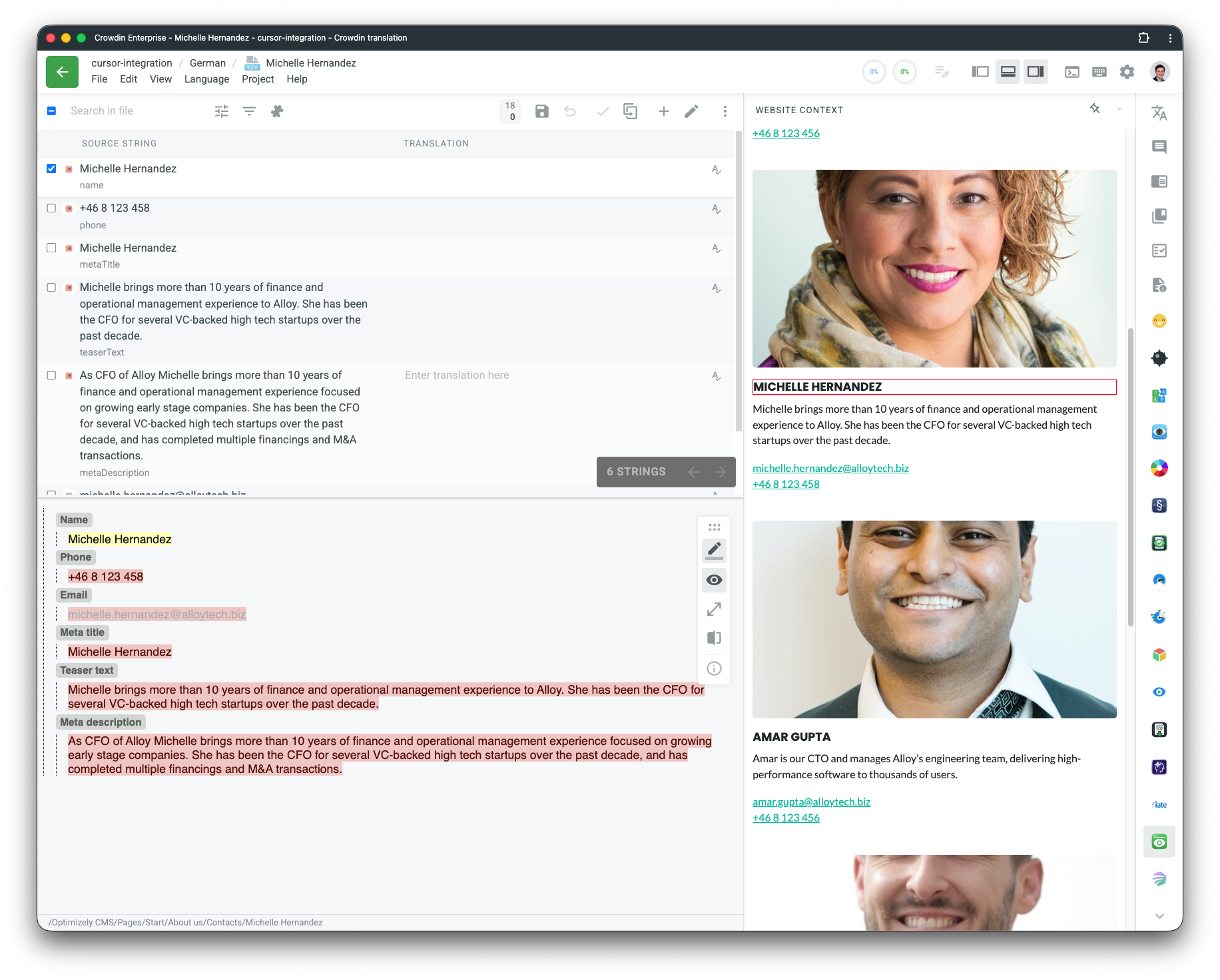
In-context translation: every string carries its field name and a note on where the text appears; pages also carry their live URL, so with the free Website Context Viewer app translators see the actual page next to each string
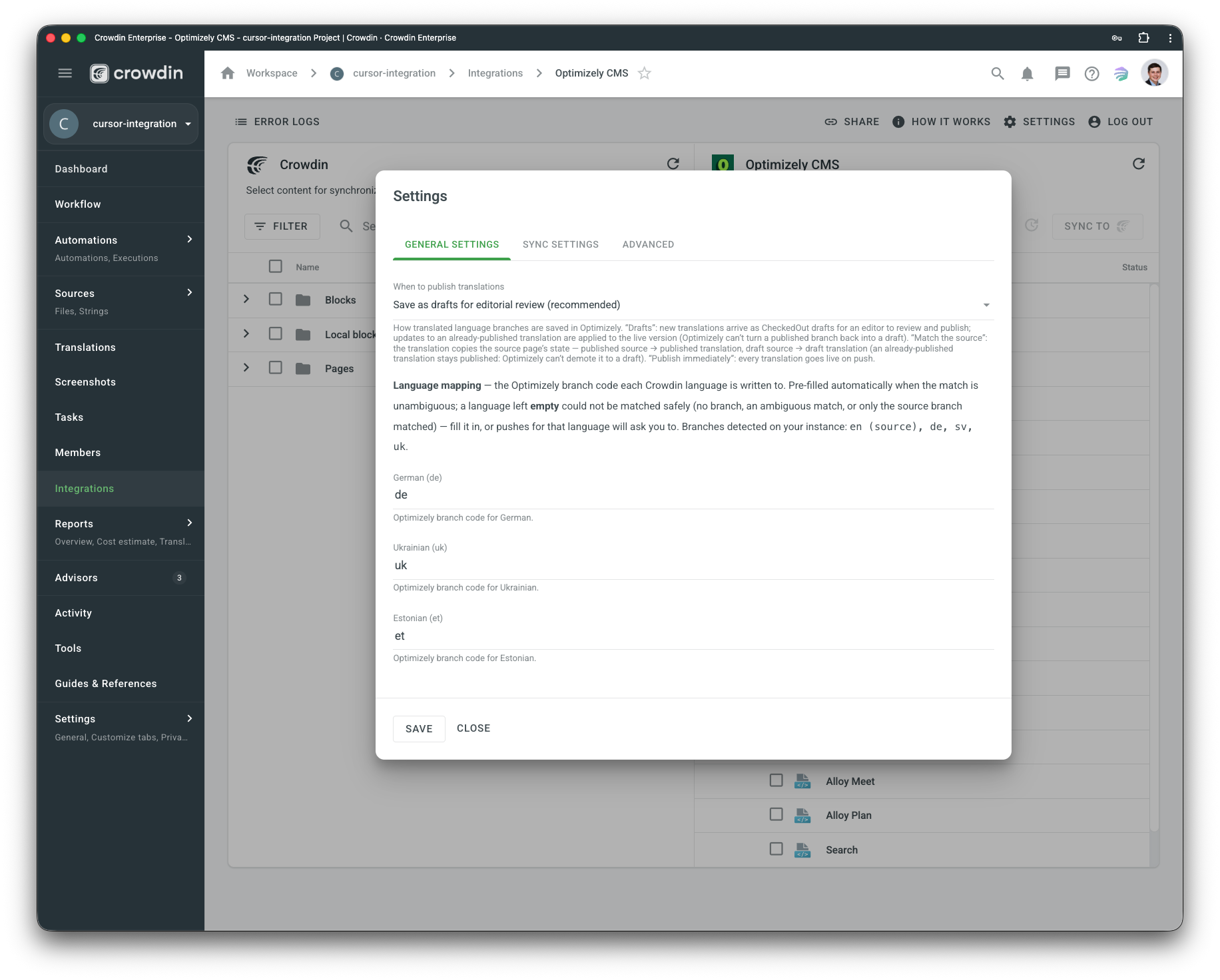
Flexible publishing: translations arrive as drafts for editorial review (default), mirror the source page's published state, or go live immediately — your choice in Settings
Custom language branch codes (e.g.
en-SE) supported: languages are auto-matched, with a per-language override in SettingsBranches are created once and then updated in place (never duplicated), fields you didn't translate keep their CMS value, the master language is protected from writes, shared (culture-invariant) properties are skipped with a clear note — and the integration never deletes content
Setting it up
The integration talks to your CMS over Optimizely's REST APIs with OAuth 2.0 — a one-time setup for your development team:
Add the Optimizely API packages to the CMS (they are not part of a default install):
EPiServer.ContentDeliveryApi.Cms,EPiServer.ContentManagementApi, andEPiServer.OpenIDConnect(+.UI), with rich text delivered as HTML.Register a dedicated machine-to-machine (client-credentials) OpenID Connect client for Crowdin with the
epi_content_deliveryandepi_content_managementscopes, granted Read / Create / Edit / Publish on the content you want translated.In Optimizely, enable each target language as a system language and add it to the site's Available Languages on the start page.
In Crowdin, install the integration, enter your CMS base URL, Client ID and Client Secret, select content, and sync.
The full checklist (packages, configuration, network access) is in the Configuration section below — written so you can forward it to your engineers as-is.
Good to know
Optimizely translates a property per language only when its content type marks it "Unique value per language" ([CultureSpecific]) — the default for normal body, heading, teaser and meta text. Shared properties (often footer or navigation link lists) keep one value for all languages until your developers flag them; the integration detects and skips them safely, and tells you in the sync log. Labels hard-coded in your site's templates are application resource strings, not CMS content — localize those language files as a separate file-based Crowdin project.
The integration supports self-hosted / PaaS CMS 12 today. CMS 13 support is built in and will activate once Optimizely ships its API packages for CMS 13; for Optimizely SaaS CMS or a heavily customized instance, contact the Crowdin team.
Optimizely is a digital experience platform (DXP) company, formerly known as Episerver, headquartered in New York. Its product suite includes enterprise content management, digital commerce, web and feature experimentation, and content marketing tools. Optimizely CMS is a .NET-based enterprise CMS that is used by medium and large organisations to run multi-site, multi-language websites with structured content (pages and reusable blocks), version control, editorial workflows and personalisation.
Features at a glance
- Translate your Optimizely site content - pages and blocks (shared, local, and embedded), including rich text, SEO fields, string lists, and link labels.
- Manual content synchronization before and after translation.
- Auto-sync of source content and translations.
- WYSIWYG file preview for translators.
- Quick sync and translation of even minor content updates, like a new sentence or a changed word.
Works with self-hosted / PaaS Optimizely CMS 12 (Optimizely's Content Delivery API, Content Management API and OpenID Connect packages must be installed — a one-time developer setup, see Configuration). Running CMS 13, Optimizely SaaS CMS, or a heavily customized instance? Contact Crowdin.
Setting up the Optimizely CMS connector
After installing the application, you will find it in your project Integrations section.
Follow the instructions on the screen to connect your Optimizely CMS account.
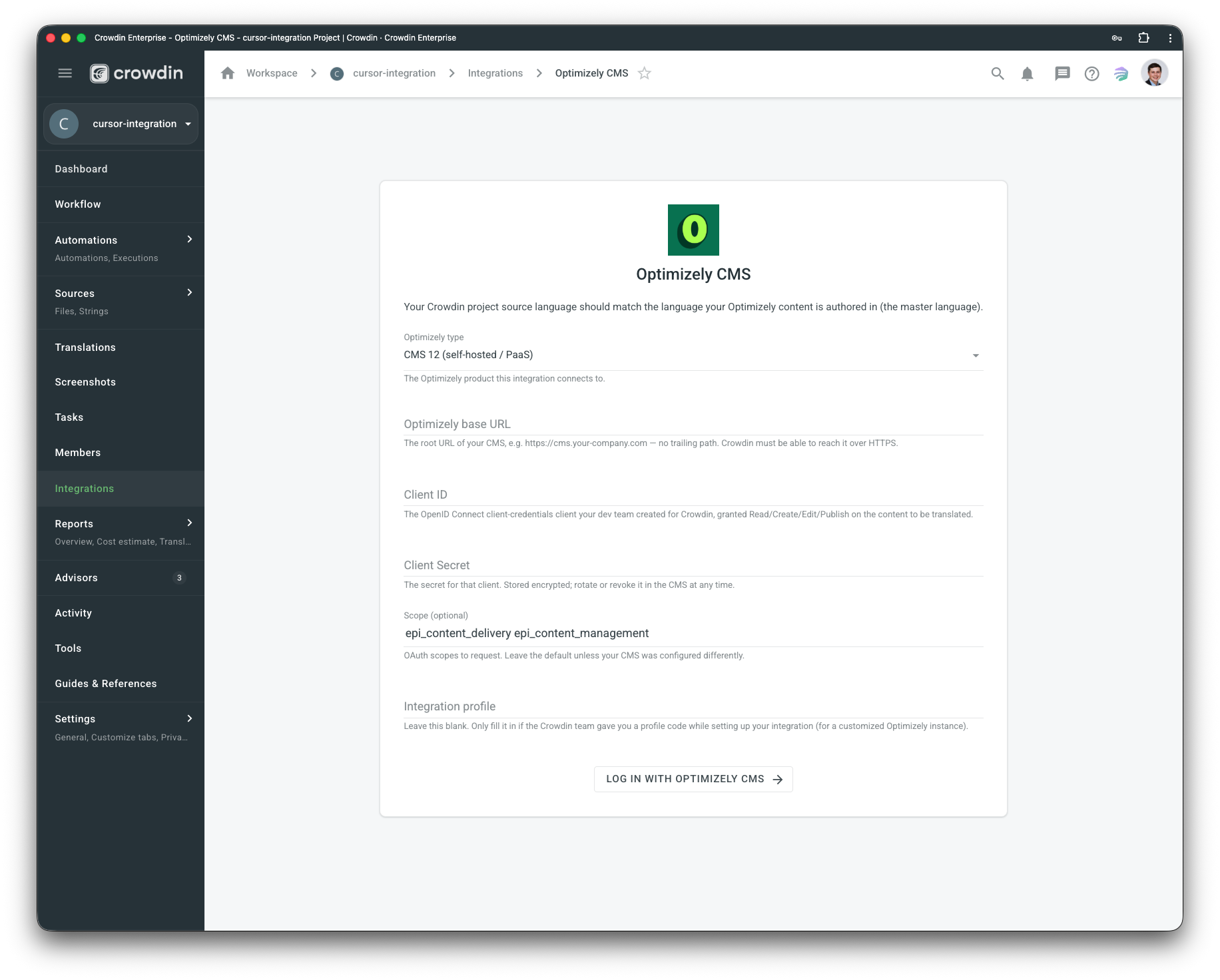
Configuring Optimizely CMS
Adjust the Optimizely CMS connector settings to match your localization workflow.
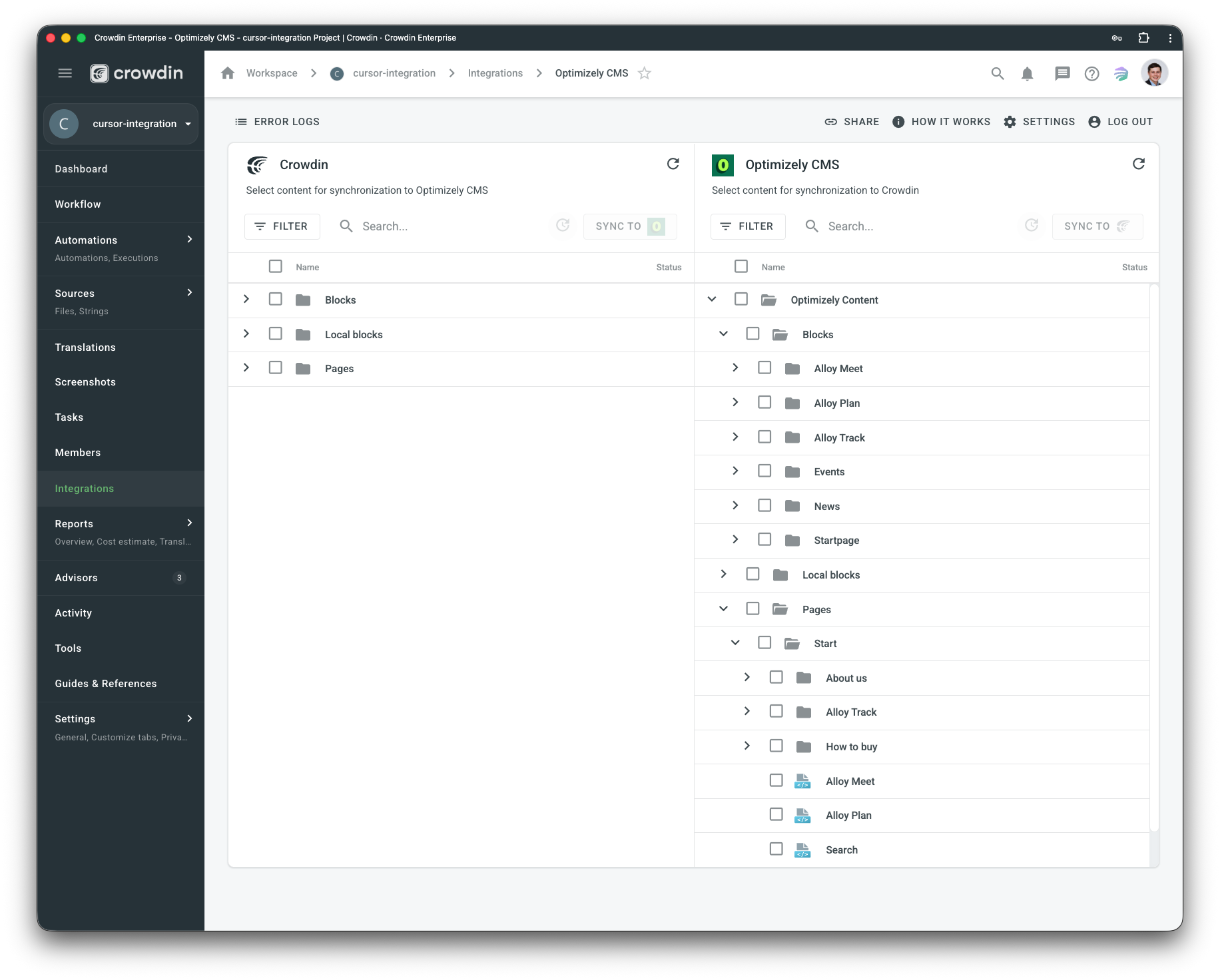
Manual synchronization
To import content for translation from Optimizely CMS, follow these steps:
- Open the Optimizely CMS integration.
- In the Optimizely CMS section (right panel), select the files that should be translated.
- Click Sync.
To export translations to Optimizely CMS, follow these steps:
- Open the Optimizely CMS integration.
- In the left section, select the files that will be synced to Optimizely CMS.
- Click Sync to Optimizely CMS.
Auto content synchronization
To automatically import content for translation from Optimizely CMS choose files and click Scheduled sync in the right panel in the Optimizely CMS integration. The file you chose will be pushed once at a scheduled time (by default, it is done once a day). The same button is used to export translated files from Crowdin to Optimizely CMS (in the left panel). You may disable this by clicking Disable Sync.
Translating in the Crowdin Editor
Translators see Optimizely CMS content directly in the Crowdin Editor, with the surrounding context they need to translate accurately.
Which Optimizely products does this support?
Self-hosted / PaaS CMS 12 today. CMS 13 support is built in and activates once Optimizely ships its CMS 13 API packages. Optimizely SaaS CMS isn't supported yet — contact Crowdin if you run it. Web/Feature Experimentation is a different product (A/B testing, not content), so it doesn't apply. Legacy CMS 11 / Episerver — supported on request.
Do I need to change my Optimizely installation?
A one-time developer setup: add Optimizely's own API packages (Content Delivery API, Content Management API, OpenID Connect) and register an OAuth client for Crowdin. No custom plugins are installed in the CMS, and nothing changes for your editors. See the Configuration section.
How are translations saved in Optimizely?
As language branches of the same content item — created on the first push and updated in place afterwards, never duplicated. By default they arrive as CheckedOut drafts for editorial review; you can instead mirror the source page's published state or publish immediately. The integration never deletes content and never writes to the master language.
Some text didn't come over for translation — why?
Two usual causes. First, the property isn't marked "Unique value per language" ([CultureSpecific]) in its content type, so Optimizely stores one shared value for all languages — the integration skips such fields safely and notes it in the sync log; your developers can flag the property and re-sync. Second, the text is an application resource string (labels rendered by your site's templates, like footer headings) — that's not CMS content; those language files can be localized as a separate file-based Crowdin project.
We use custom language branch codes like en-SE. Will they work?
Yes. The integration reads the branch codes from your instance and auto-matches each Crowdin language; you can override any mapping per language in Settings. When a safe match can't be made automatically, the mapping is left empty and the push asks you to fill it in — it never guesses, and it refuses mappings that point at the master branch.
Will it overwrite edits my editors make in the CMS?
Fields that were never translated in Crowdin always keep their CMS value. For fields that are translated in Crowdin, Crowdin is the source of truth: the next sync writes the Crowdin translation over manual CMS edits to that field. Rule of thumb: edit translations in Crowdin, edit source content in the CMS.
What context do translators get?
Every string carries the field's name and a note on where the text appears; SEO fields carry character budgets; rich text is edited in a WYSIWYG preview. Strings from pages also include the live page URL — install the free Website Context Viewer app and the actual page renders beside each string in the Editor.


Crowdin is a platform that helps you manage and translate content into different languages. Integrate Crowdin with your repo, CMS, or other systems. Source content is always up to date for your translators, and translated content is returned automatically.
Learn More- —Crowdin Enterprise
- —crowdin.com
Released on Jul 9, 2026
Updated on Sep 30, 2026
Published by Crowdin
Identifier:optimizely