
Requires Crowdin account
Find the Translations Your Terminology Change Left Behind

A glossary term gets renamed. A style guide picks up a new rule about tone. Everything translated before that moment is now out of date — but nothing in Crowdin says so. Those strings are translated, often approved, and the progress bar still reads 100%. The knowledge that they need a second look lives only in the head of whoever made the change.
Stale Translations Advisor watches your glossaries and style guides, and when something changes it works out which existing translations that change invalidates — with a reason and a confidence for each one. Then it hands you the thing that makes the list actionable: a real Crowdin label, and an editor view filtered down to exactly those strings.
When someone fixes a translation, the app notices on its next pass, closes that string, and takes its own label back off. The list empties itself as the work gets done.
What you get
Findings arrive as one card per project and target language — in the Findings tab of project Tools, and on the Translations to re-check card in Project Advisor. Each card lists the affected strings with the change that caused them, the reasoning, and a confidence score, so a reviewer can judge it without leaving the page.
.png)
Three actions per card:
- Add label to N strings — puts
needs-retranslation-<language>on them. That label is the handle for everything else in Crowdin: filter the editor, select the strings for pre-translation, or hand them to a translator. - Open in Editor — the same strings, pre-filtered, in the right target language.
- Dismiss — for a finding you disagree with. Dismissed findings don't come back, and individual strings can be dismissed on their own.
Two kinds of change are watched:
- Glossary changes — a term added, renamed, retranslated or deleted; a bulk import; a glossary linked to or unlinked from a project.
- Style guide changes — edits to a style guide's AI instructions, and changes to which projects or languages it covers.
An Issues tab shows any analysis that failed, with the error and a Retry that re-reads your current AI settings before trying again.
How it works
- Install the app and open its settings — organization settings on Crowdin Enterprise, profile settings on Crowdin.
- Pick an AI model — any provider and model your organization has configured in Crowdin's AI settings, as long as it meets what the analysis needs (a large context window and tool calling). No extra API keys.
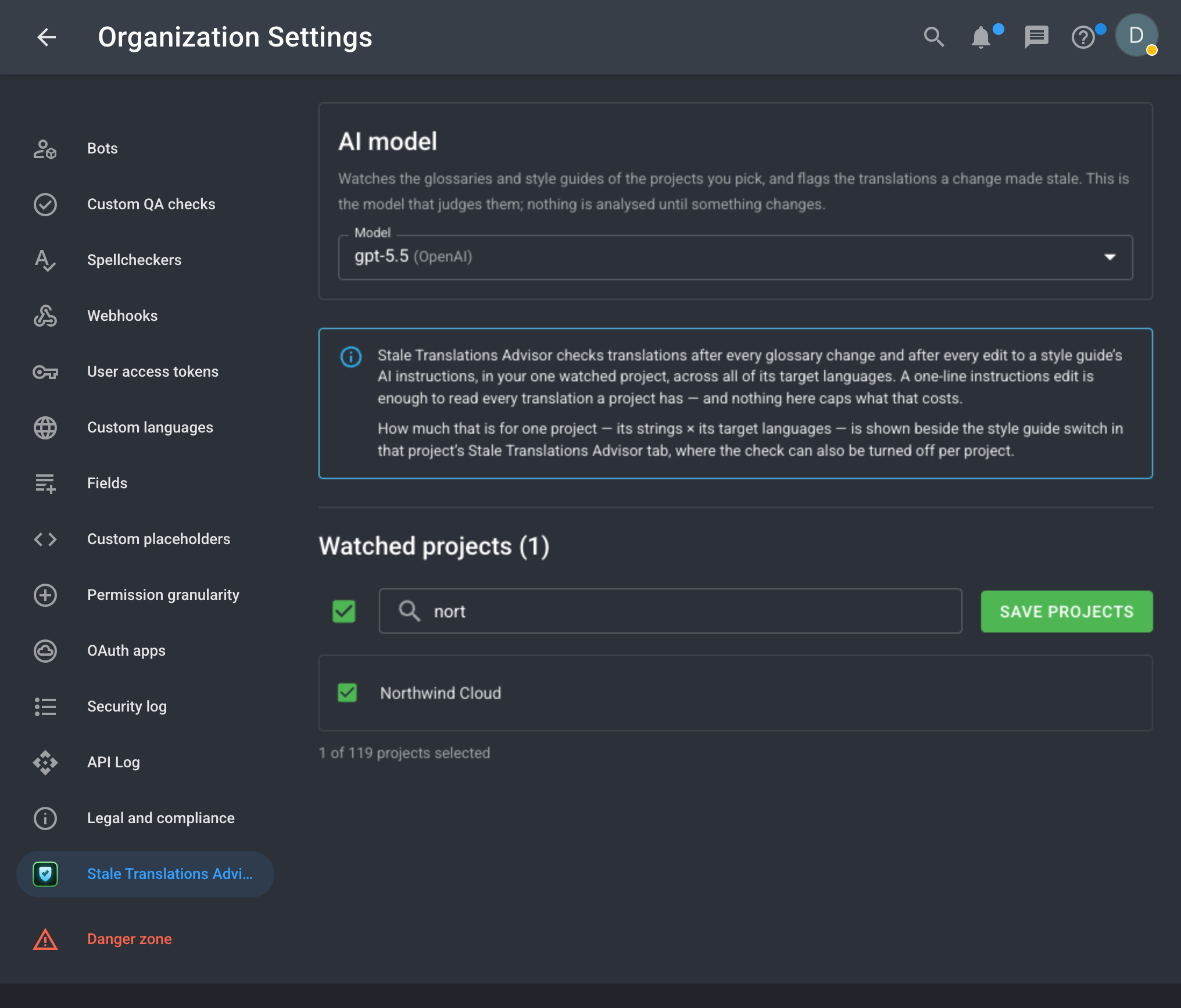
- Enable the projects you want watched — nothing is watched until you opt in.
- Let it run in the background. The app polls your glossaries and style guides — neither resource has webhooks, so polling is the only route — and analyses whatever changed. Need an answer right away? Press Check for changes on the project's tab.
- Review and act from the Findings tab or the Advisor card: label the strings, open them in the editor, or dismiss the finding.
- Fix in Crowdin — by hand, or by pre-translating the labelled strings. The app doesn't edit translations; it finds them and gets out of the way.
Key benefits
- A gap nothing else covers — a stale translation is indistinguishable from a finished one. No QA check fires, no progress bar moves, no filter finds them.
- Actionable, not advisory — the output is a Crowdin label and a filtered editor link, not a report to read and act on later.
- Closes itself — each string retires as it gets fixed, and the label comes off with it. No manual bookkeeping, no list that rots.
- Shows its reasoning — every string comes with the change that affected it, why, and a confidence. Low-confidence findings are held back from labeling unless you tick them in.
- Human in the loop — the app never changes a translation. The only thing it writes to your project is a label, and it only ever removes labels it added itself.
- Any configured AI model — uses what your organization already has in Crowdin's AI settings.
Notes
- Projects are opt-in: after installation, nothing is watched until you enable it.
- Changes made before you enabled a project are not reported. Installing the app does not audit your accumulated history — it takes a baseline and reports from the next change onwards. An empty Findings tab right after setup is correct, not broken.
- An organization admin must select an AI model in the app's settings, and that provider must be enabled in Crowdin's AI settings. Without one, analysis parks and the app says so on the card.
- Style guide checks can be expensive. A one-line edit to a style guide's AI instructions means reading every translation in every language that guide covers, and nothing caps that. Each project's tab shows the volume for that project and has a switch to turn style guide checks off while leaving glossary checks on.
- Findings are kept for 90 days.
- Works on both Crowdin and Crowdin Enterprise.


Crowdin is a platform that helps you manage and translate content into different languages. Integrate Crowdin with your repo, CMS, or other systems. Source content is always up to date for your translators, and translated content is returned automatically.
Learn More- —crowdin.com
- —Crowdin Enterprise
Released on Aug 5, 2026
Updated on Aug 6, 2026
Published by Crowdin
Identifier:stale-translations-advisor