Canva Translation Solution

Translate your Canva designs using Crowdin's translation platform.
⚠️ Important Setup Step This integration requires installation on the Canva side first. Please ensure you are logged into Canva, then click the View guide link at the top of this page to install the app in Canva before proceeding below.
How to Translate Canva
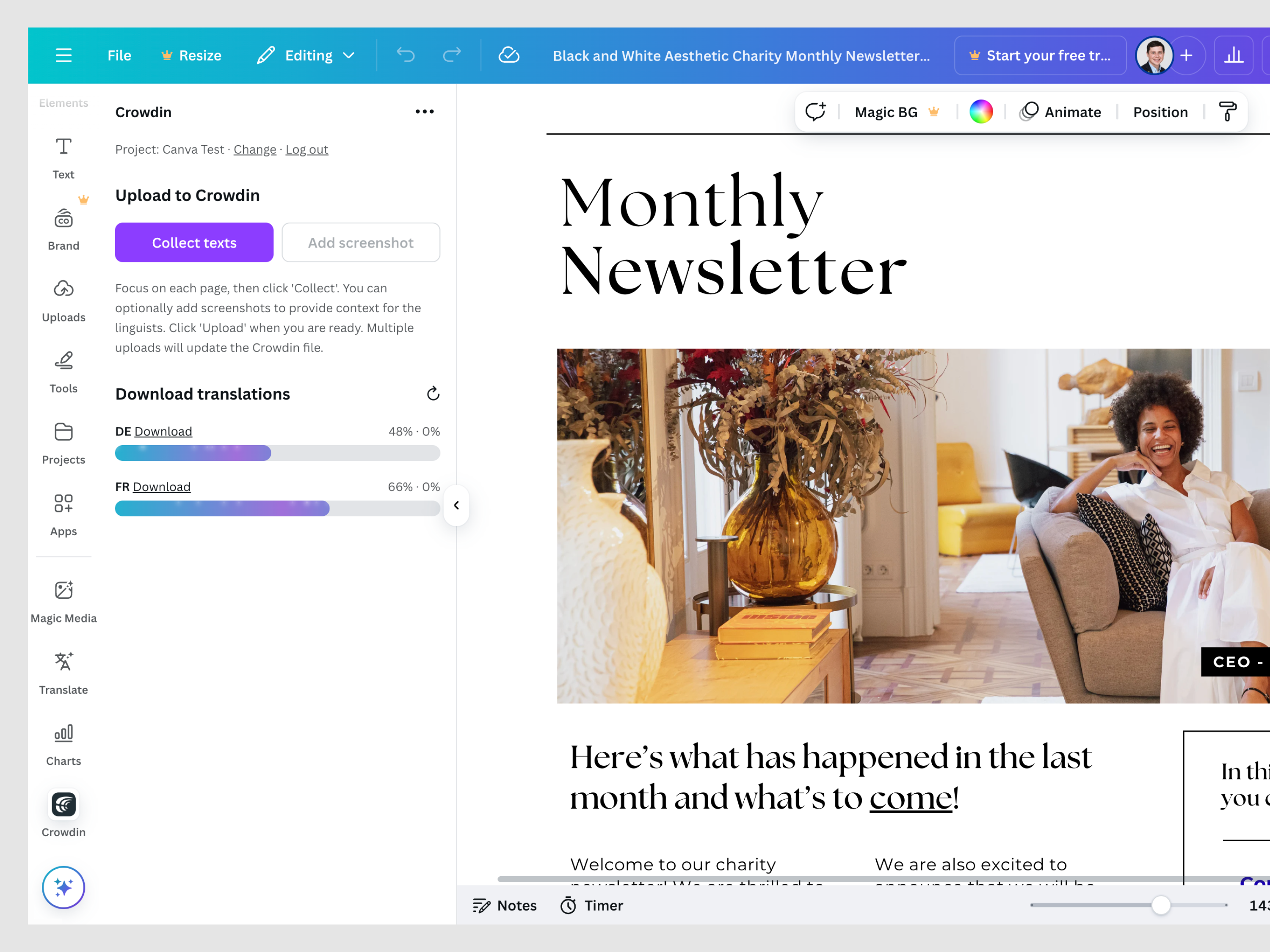
1. Connect Once installed in Canva, open your design, click "Apps" in the sidebar, open Crowdin, and click "Login with Crowdin." Select your project to begin.
2. Collect Content The app works one page at a time. You must capture the state of your design manually:
- Navigate to Page 1 in your Canva design (ensure it is visible on screen).
- Click Collect texts in the app.
- Move to Page 2, click Collect texts, and repeat for all pages you want to translate.
- Important: Please collect pages sequentially (1, 2, 3...). The app tracks your progress and text count.
3. Add Context (Recommended) Before uploading, click Add screenshot after collecting your pages. This gives translators visual context to ensure high-quality results.
4. Upload to Crowdin Click Upload to send the collected text and screenshots to Crowdin as a single file.
Warning: After uploading, do not rename your design in Canva. The app maps translations based on the design name. If you rename it, the link will break.
5. Apply Translations Once the translation progress in Crowdin reaches 100% (or your desired level):
- Click the Download button next to a target language in the app.
- For Multi-page Designs: Navigate to the specific page in Canva, select the corresponding page in the app's dropdown, and click Apply to This Page.
- For Single-page Designs: The translation applies immediately.
Tip: If translating to multiple languages, we recommend making a copy of the design for each language.
---Important Limitations & Notes
- Re-uploading: To add a new page to an already uploaded design, you must re-collect all previously uploaded pages along with the new page before clicking Upload again.
- Unsupported Formats: This integration does not support Canva Docs or Canva Spreadsheets.
- Undo: To revert translations, use Canva's native 'Undo' button (Ctrl+Z / Cmd+Z).
Special Instructions for Canva Websites
Canva Websites use "Sections" rather than standard pages.
- Collection: You can collect text section-by-section. However, to prevent data loss, we recommend collecting all sections first, then clicking Upload once.
- Screenshots: For best results, send texts one page/section at a time. Sending a massive website all at once may fail to generate screenshots due to size limits.
- Applying Translations: The app treats each website section as a separate item. If your site has 15 sections, you will see 15 items in the dropdown. Match the dropdown item to the section you are currently viewing to apply the text.
Troubleshooting
| Issue | Solution |
|---|---|
| "Already collected!..." | You have already scanned this page. Skip it or click "Clear All" to restart. |
| "Session expired" | Please disconnect and log in to Crowdin again. |
| "Wrong page! Expected X..." | You are on the wrong page. Navigate to the correct page in the Canva editor. |
| Text doesn't fit | This is normal with expanded text. Manually resize the text box or reduce font size. |
| Boxes (□) appear in text | The current font does not support the target language. Change font to Noto Sans or Roboto. |
| No translations found | Ensure you have uploaded the design and translations are completed in Crowdin. |
| Project not found in list | Ensure your Crowdin project is File-based. String-based projects are not supported. |


Crowdin is a platform that helps you manage and translate content into different languages. Integrate Crowdin with your repo, CMS, or other systems. Source content is always up to date for your translators, and translated content is returned automatically.
Learn More