
Localize Your Freshdesk Knowledge Base

Make your Freshdesk knowledge base multilingual to support your global customers. Freshdesk integration allows you to synchronize knowledge base content with your localization project and deliver translations ack to Freshdesk in a few clicks. You can also import existing translations from Freshdesk to keep your projects aligned.
Your translators will be able to use Glossaries, Translation Memory, and other localization resources you’ve added to your project. This will help to keep translations consistent across languages.
How Does The Integration Work
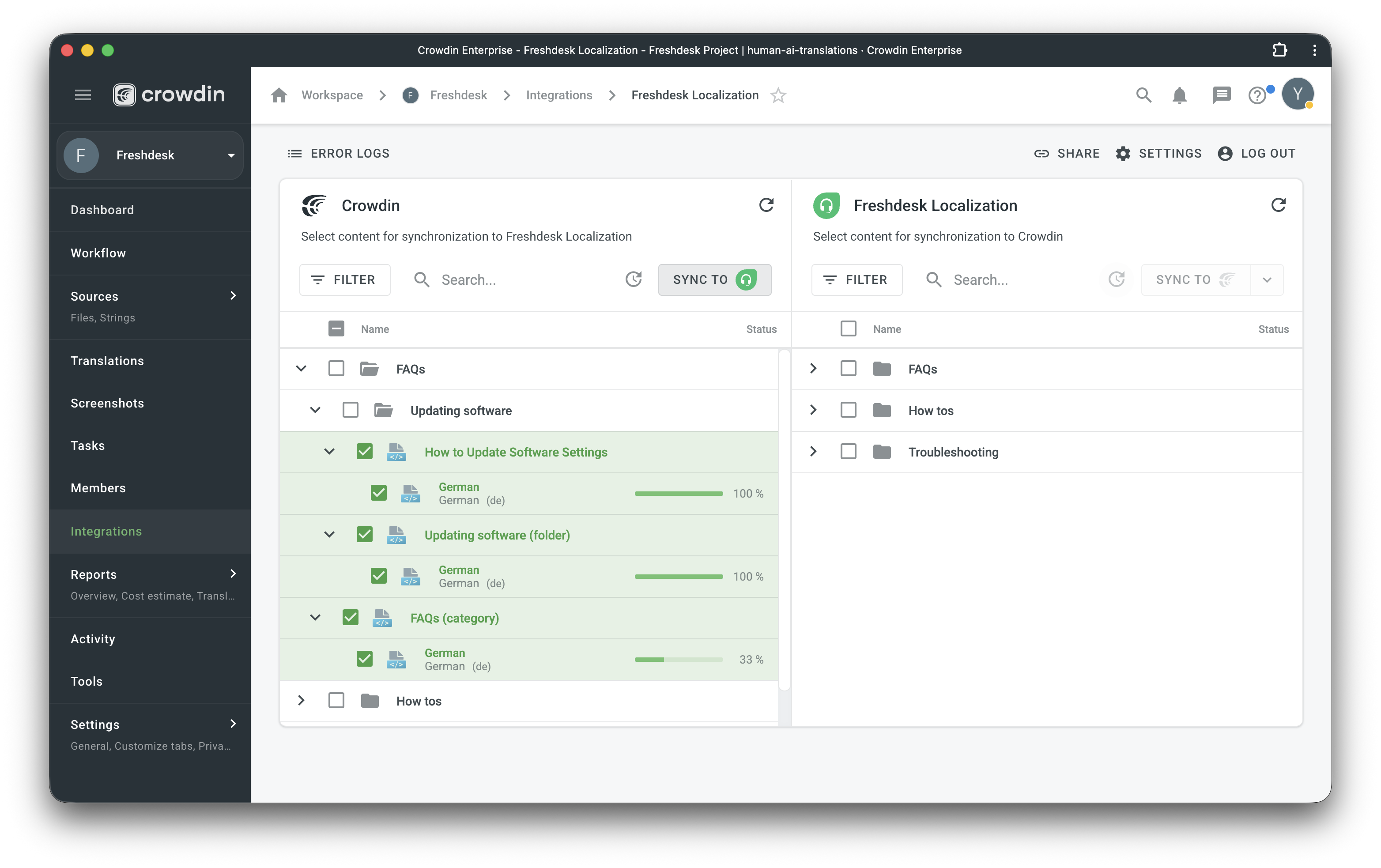
Once you configure the integration, the content from Freshdesk is automatically added to your Crowdin project as XML files. Besides articles, you can localize names and descriptions of your helpdesk categories and folders. These texts are added to the project as separate XML files.
Here’s how your project files will look like after the successful configuration:
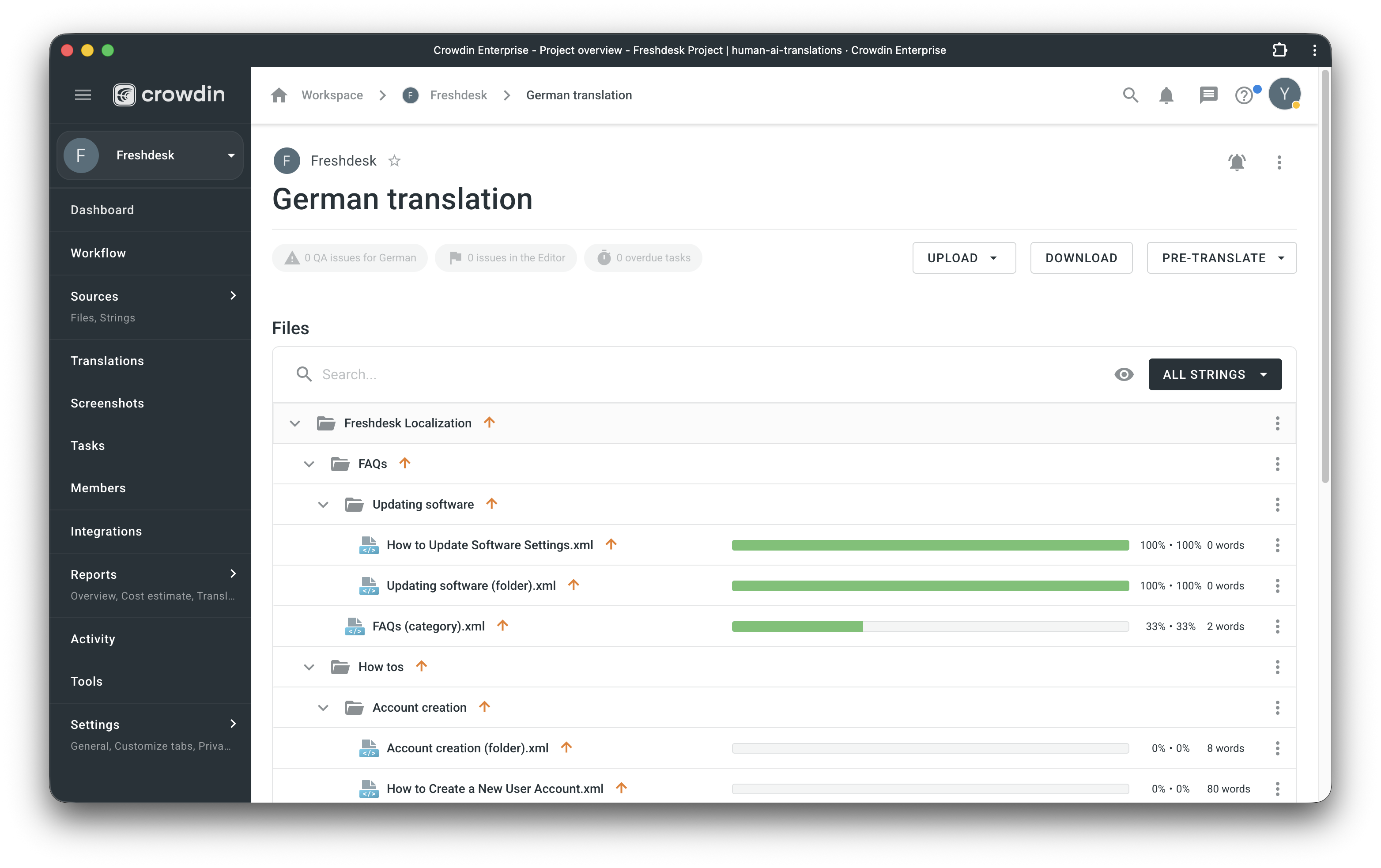
A separate folder is created for each category you choose to localize. Each category folder will contain separate files for these data types:
- Category name and description.
- Folder names and descriptions.
- Separate file for each article (WYSIWYG content).
The numbers in the folder and file names are the IDs of the categories, folders, and articles in Freshdesk. These IDs are visible only to the project owner and managers. Instead of the IDs, your translators and proofreaders will see the real category, folder, and article names.
Once you have uploaded the files to the project, you can invite contributors to translate and proofread the texts. Read more about the translation approaches you can use in Crowdin.
To upload translations to Freshdesk, you can either set up a sync schedule to automatically add translations to the help center at set intervals, or you can initiate a sync on demand.
In the settings, you can choose how to export translations:
- Always as Draft
- Always as Published
Connecting Freshdesk with Crowdin
To connect your Freshdesk account with your Crowdin project, follow these steps:
- Open your project and go to the Integrations tab.
- Click on Freshdesk in the Integrations list.
- Specify your Freshdesk Portal URL (e.g.,
https://mycompany.freshdesk.com) and your Freshdesk profile API key (you can find it in your Freshdesk Profile settings). - Click Log in with Freshdesk Localization.
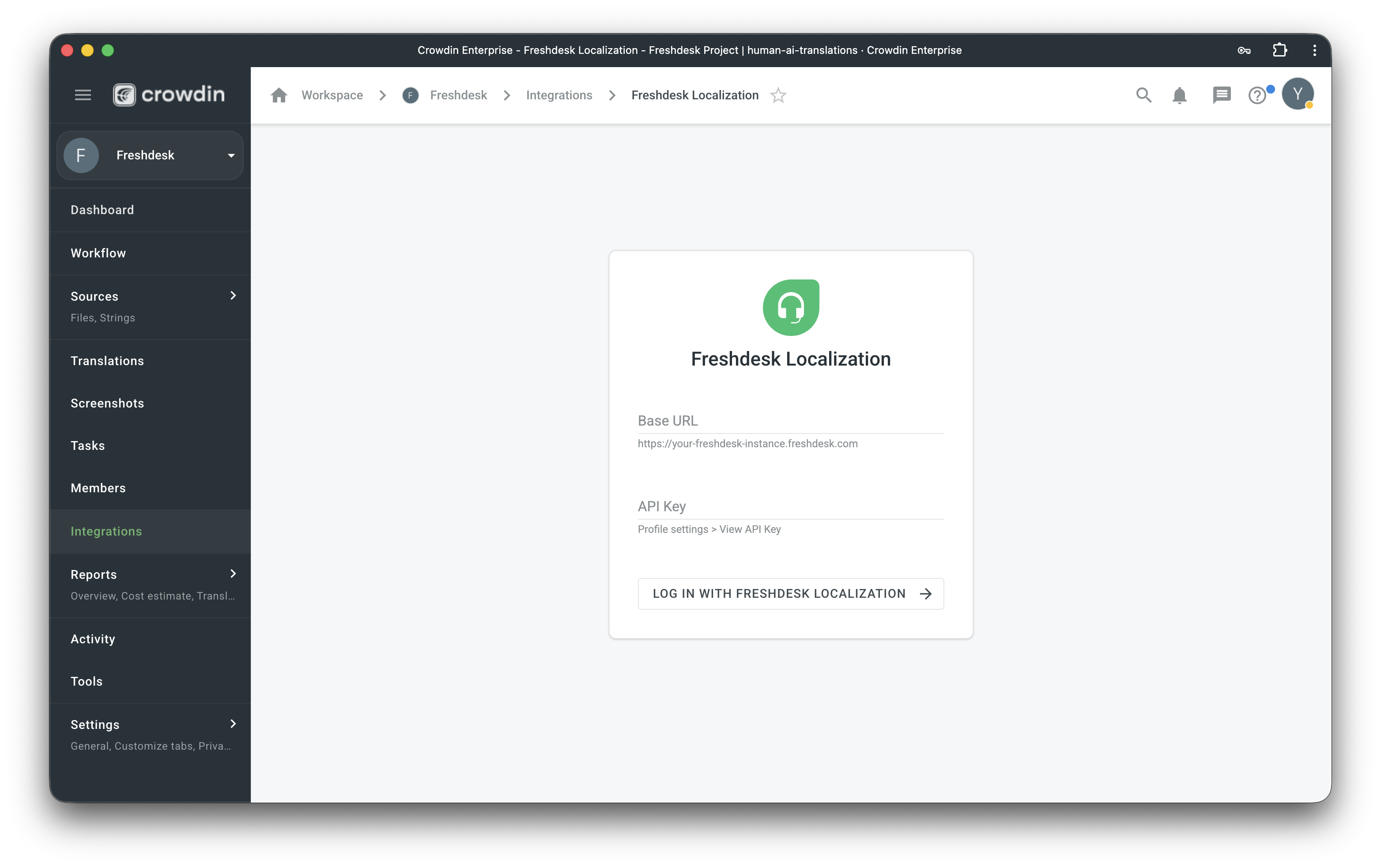
5.Click Settings to finish the setup.
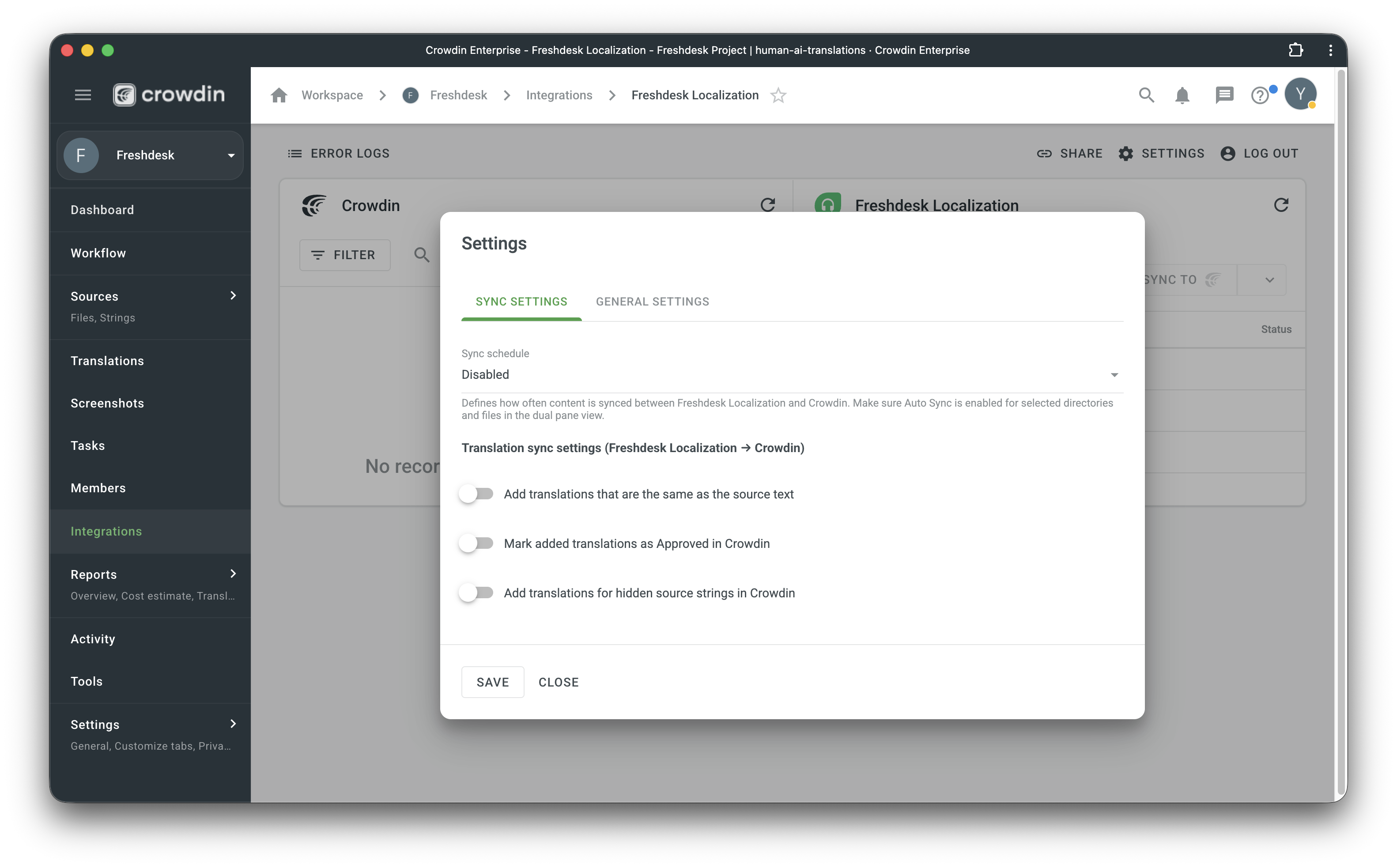
6.Sync Settings
Here you can configure the synchronization schedule and initial translation import:
- Set the time interval (e.g., 1 hour, 3 hours, 24 hours), or keep it Disabled for manual syncing.
- Configure how translations are imported from Freshdesk into Crowdin. You have these options:
- Add translations that are the same as the source text.
- Mark added translations as Approved in Crowdin.
- Add translations for hidden source strings in Crowdin.
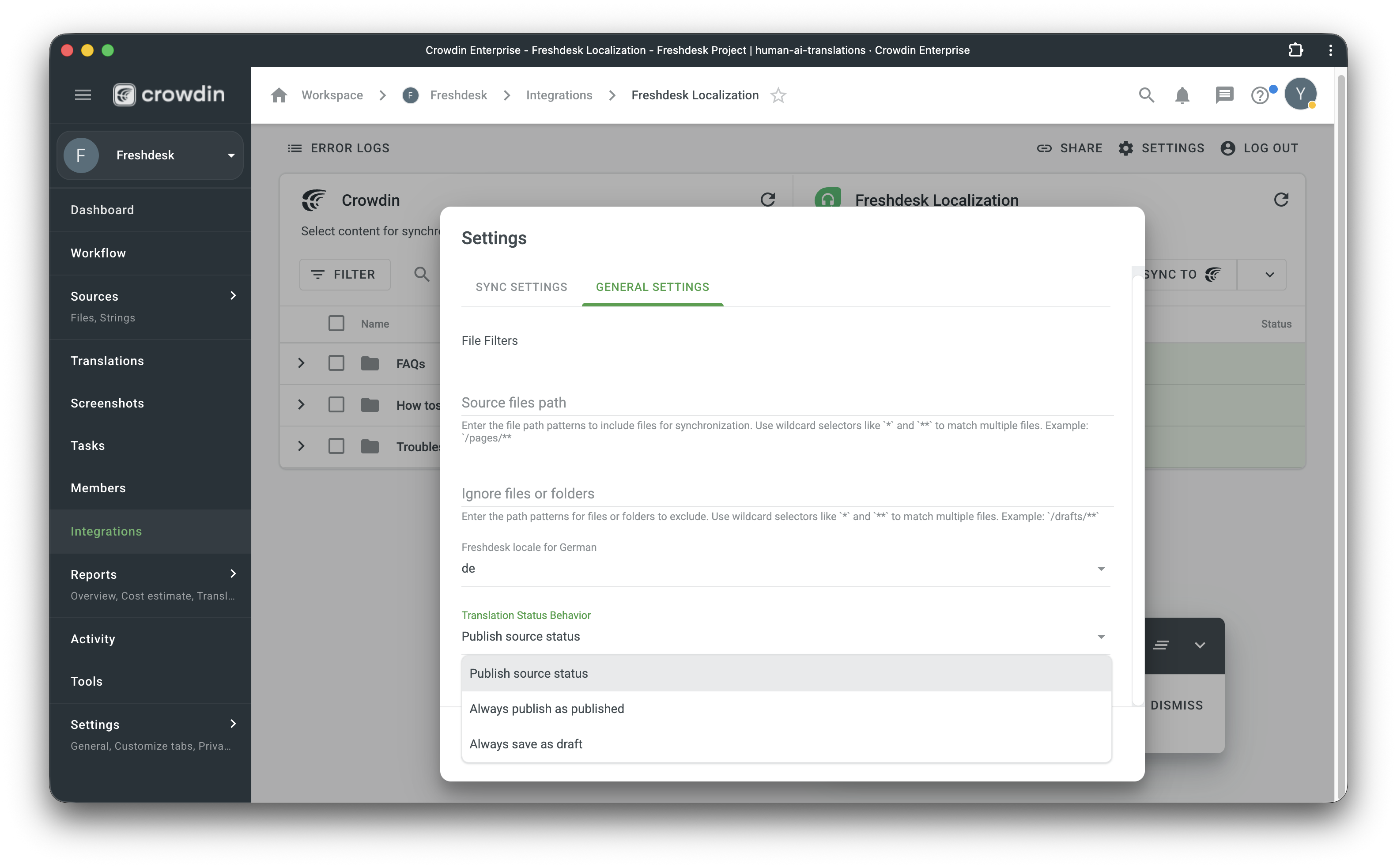
7.General Settings
Configure file handling and publishing behavior:
- Use the Source files path and Ignore files or folders fields to specify which files to include or exclude.
- Set the target language locale.
- Set up how translated content is created in Freshdesk when syncing from Crowdin:
- Always publish as published: Translated content will automatically go live on your helpdesk.
- Always save as draft: Translated content will be saved as a draft for review before manual publishing.
8.Click Save.
Manual Sync
If the schedule is Disabled, you can manually initiate synchronization by clicking the Sync to Freshdesk button on the main integration screen.


Crowdin is a platform that helps you manage and translate content into different languages. Integrate Crowdin with your repo, CMS, or other systems. Source content is always up to date for your translators, and translated content is returned automatically.
Learn More- —Crowdin Enterprise
- —crowdin.com
Released on Dec 25, 2019
Updated on Dec 22, 2025
Published by Crowdin
Identifier:freshdesk