
Requires Crowdin account
Paligo translation and localization with Crowdin

Make translating and localizing Paligo content a breeze with this integration. Set up the connector, define your workflow, and enjoy efficient and reliable translations for complex documentation.
Paligo is a top-rated enterprise-grade CCMS (component content management system) with a familiar SaaS UI. Topic-based authoring means translation only needs to be done once and it can then be stored in the TMS of your choice. As content is single-sourced, it only needs to be updated once to be updated everywhere. www.paligo.net
Features at a glance
- Documents translation.
- Manual content synchronization before and after translation.
- Auto-sync of source content and translations.
- Quick sync and translation of even minor content updates, like a new sentence or a changed word.
Paligo translation connector overview
Setting up the Paligo connector
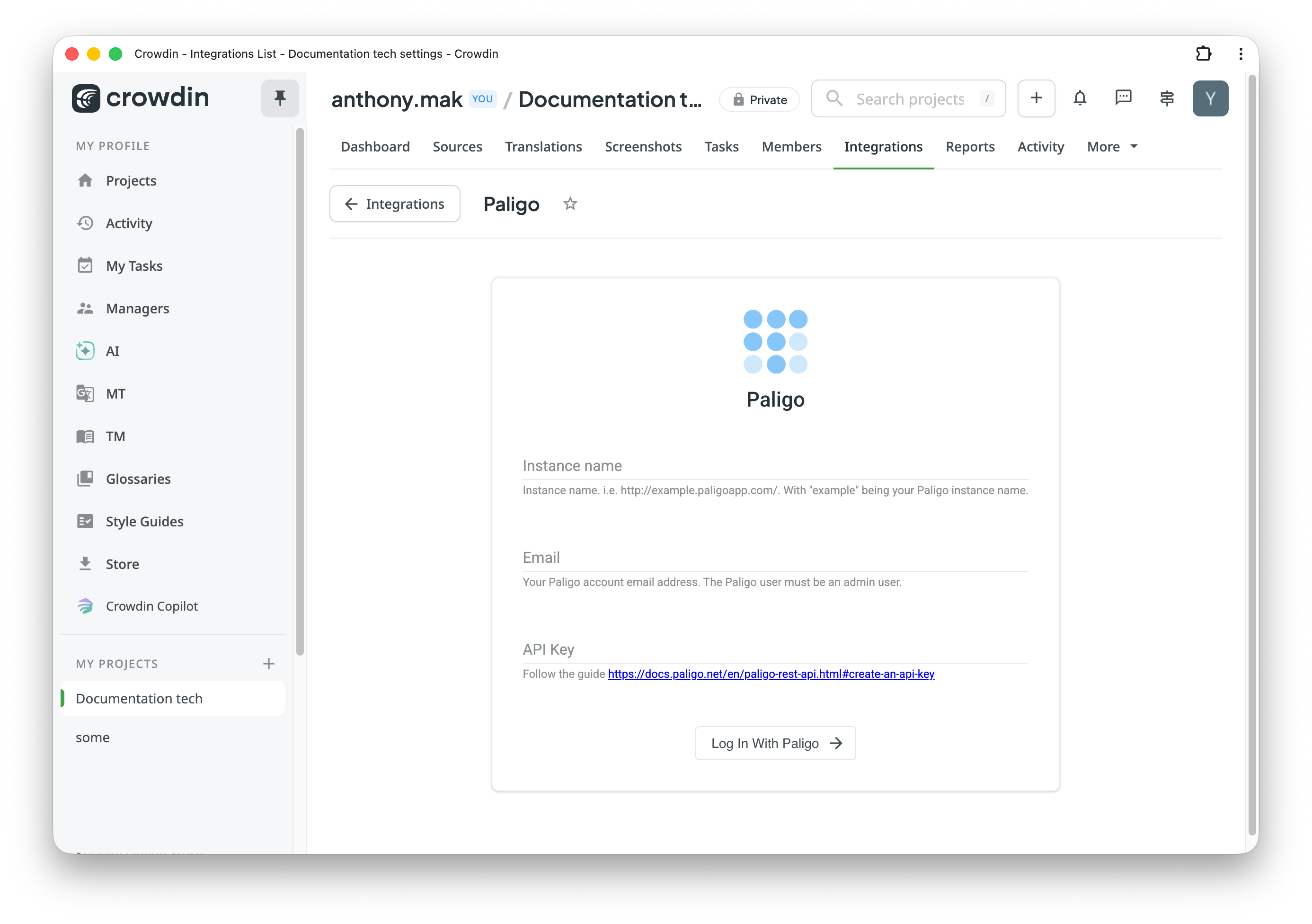
After installing the application, you will find it in your project's Integrations section.
Follow the instructions on the screen to connect your Paligo account. If your Paligo content isn't in English or Paligo uses different language codes, set the codes in Settings.
Manual synchronization
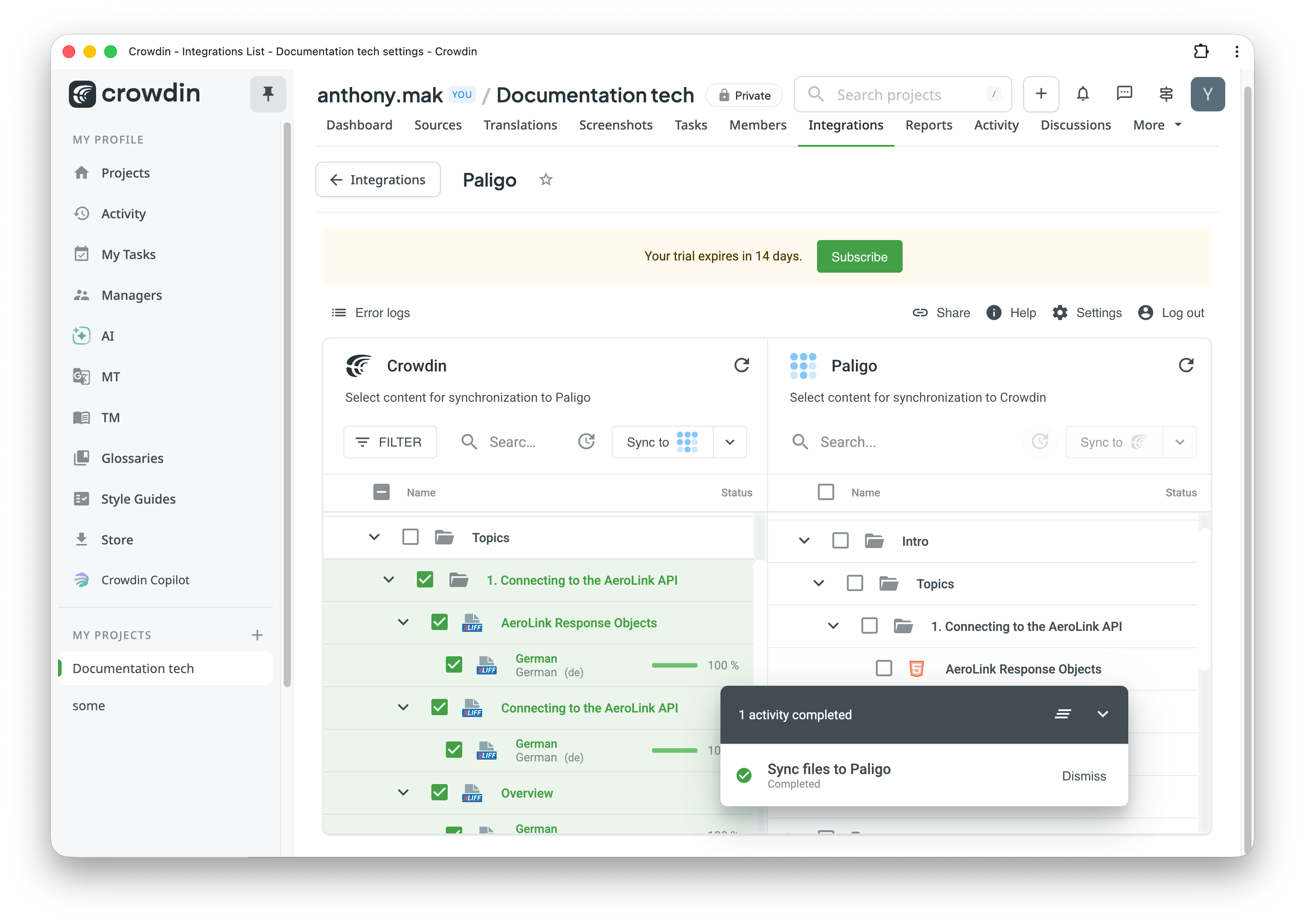
Select documents in the Paligo panel and click Sync to Crowdin to import them for translation. Select files in the Crowdin panel and click Sync to Paligo to export their translations.
The Paligo panel lists documents in the In Translation status. Add their target languages in Paligo before syncing. To update documents in other statuses, select Allow updates to documents in any status in Settings.
Auto content synchronization
Choose a Sync schedule on the Sync settings tab of Settings and click Save. Then right-click files in either panel and select Enable Auto Sync (or Disable Auto Sync to stop).
Approved translations
To send only approved translations to Paligo, select Export only approved translations and Skip untranslated strings in the project's Settings > Export. In Crowdin Enterprise, select Export translations with a specific number of approvals instead (or Export strings that passed workflow if every string passes a proofreading step), and choose the same for languages under Advanced export options. For auto-sync, setting Files export settings to Export approved only holds each file back until its translations into a language are fully approved.
To import translations approved in Paligo, right-click a document in the Paligo panel and select Sync translations. To keep them approved in Crowdin, select Mark added translations as Approved in Crowdin in Settings before syncing.
To review and approve translations in Paligo, see Paligo's Translate with Crowdin guide.


Crowdin is a platform that helps you manage and translate content into different languages. Integrate Crowdin with your repo, CMS, or other systems. Source content is always up to date for your translators, and translated content is returned automatically.
Learn More- —Crowdin Enterprise
- —crowdin.com
Released on Apr 12, 2022
Updated on Oct 13, 2026
Published by Crowdin
Identifier:paligo