Crowdin Assistant – Your AI Teammate for Localization

Meet your AI-powered co-worker, built directly into Crowdin. Crowdin Assistant brings AI intelligence into every corner of your localization workflow – from the Editor to project management to org-level automation.
Overview
Crowdin Assistant is an AI localization agent that works alongside you everywhere in Crowdin. Instead of switching between tabs and copy-pasting context into a chat window, it's embedded natively inside Crowdin – and it already knows exactly what you're looking at, what you're working on, and what your project needs.
With direct access to Crowdin's full API surface, Assistant can read your projects, answer questions, and take action – all while keeping you in control.
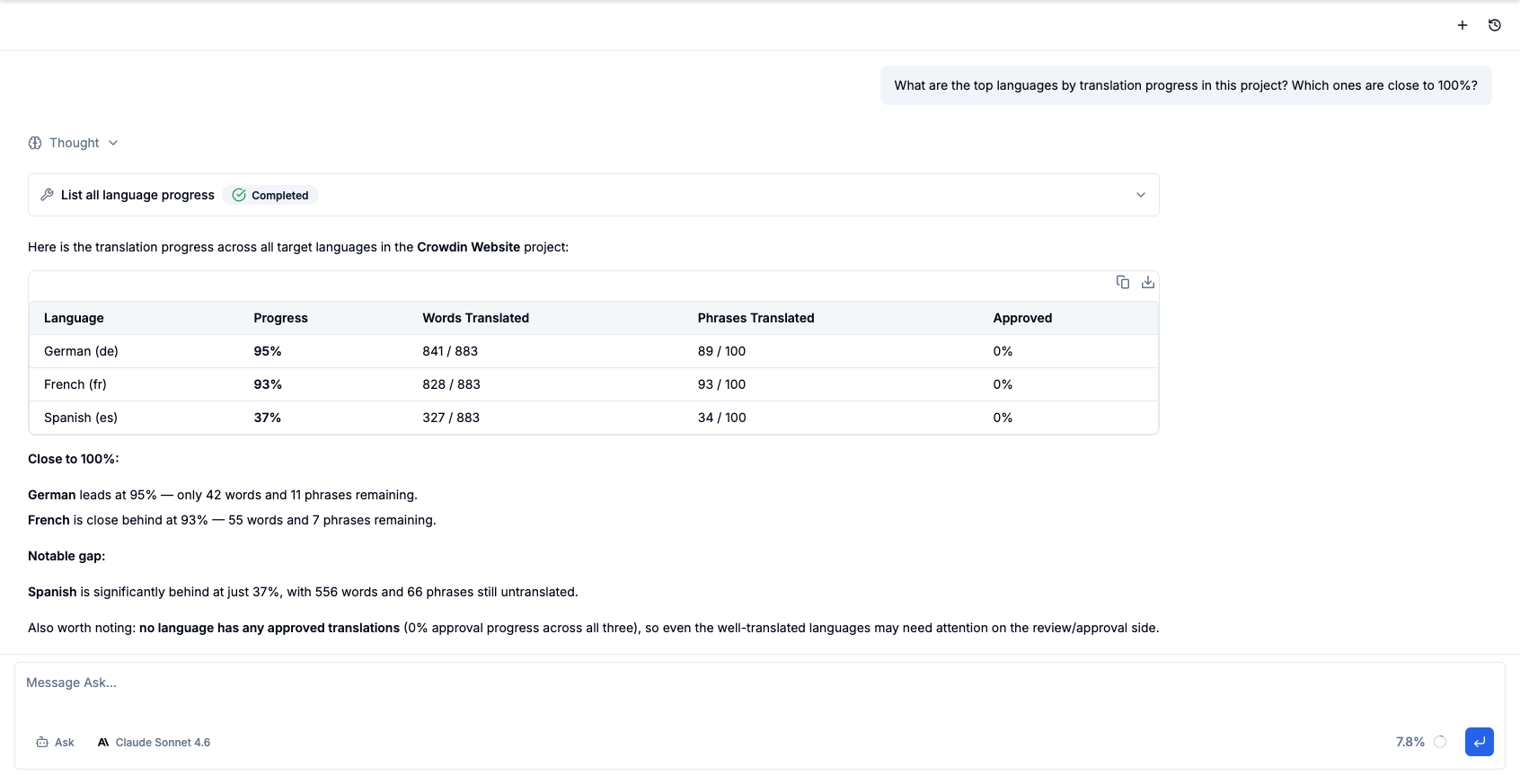 Crowdin Assistant – AI-powered chat embedded natively inside Crowdin
Core Capabilities
One Assistant, Everything in Reach
Every chat opens with the full toolset already available: the Crowdin API, the system skills, your organization's skills, your connected integrations, and the custom agents your admins have set up. Assistant reads the request and brings in the right tool, skill, or agent itself.
- Ask anything – query your project stats, review string statuses, explore translation memory and glossaries, generate reports. Read-only requests run right away, with tables and charts rendered inline where they help.
- Get things done – create tasks, trigger auto-translation, upload files, edit source strings, manage workflows. Assistant decides how to approach each request and shows every step in the chat.
- Stay in control – it acts with your own Crowdin permissions, and anything risky waits for your approval before it runs.
Describe Your AI Pipeline, and Assistant Builds It
Instead of assembling a multi-step AI Pipeline field by field, describe what you want in plain language. Assistant reads your project first – languages, the file types you actually have, whether screenshots are tagged – and only offers steps your project can support. Then it asks a few short questions about ambiguity filtering, QA checks, and language-specific rules.
Nothing is created until you approve it. You get a plan of the whole pipeline, every step with its scope and model, and it validates the configuration before saving – so a broken pipeline doesn't surface halfway through a run.
It works on existing pipelines too: add a step, drop one, reorder them, or reuse a pipeline that already does what you described.
Deep Editor Integration
When you're working in the Crowdin Editor, Crowdin Assistant sees exactly what you see:
- The active string and its source text
- All existing translations across languages
- Votes, approvals, and QA flags
- Your current workflow step and task assignment
- The full page of strings in context
Ask "Does this string have consistent translations across all languages?" and Assistant already knows the answer – no copy-pasting required.
It also reads the AI context stored on your strings, including context written by apps like Cursor – so an explanation added once benefits every conversation afterwards.
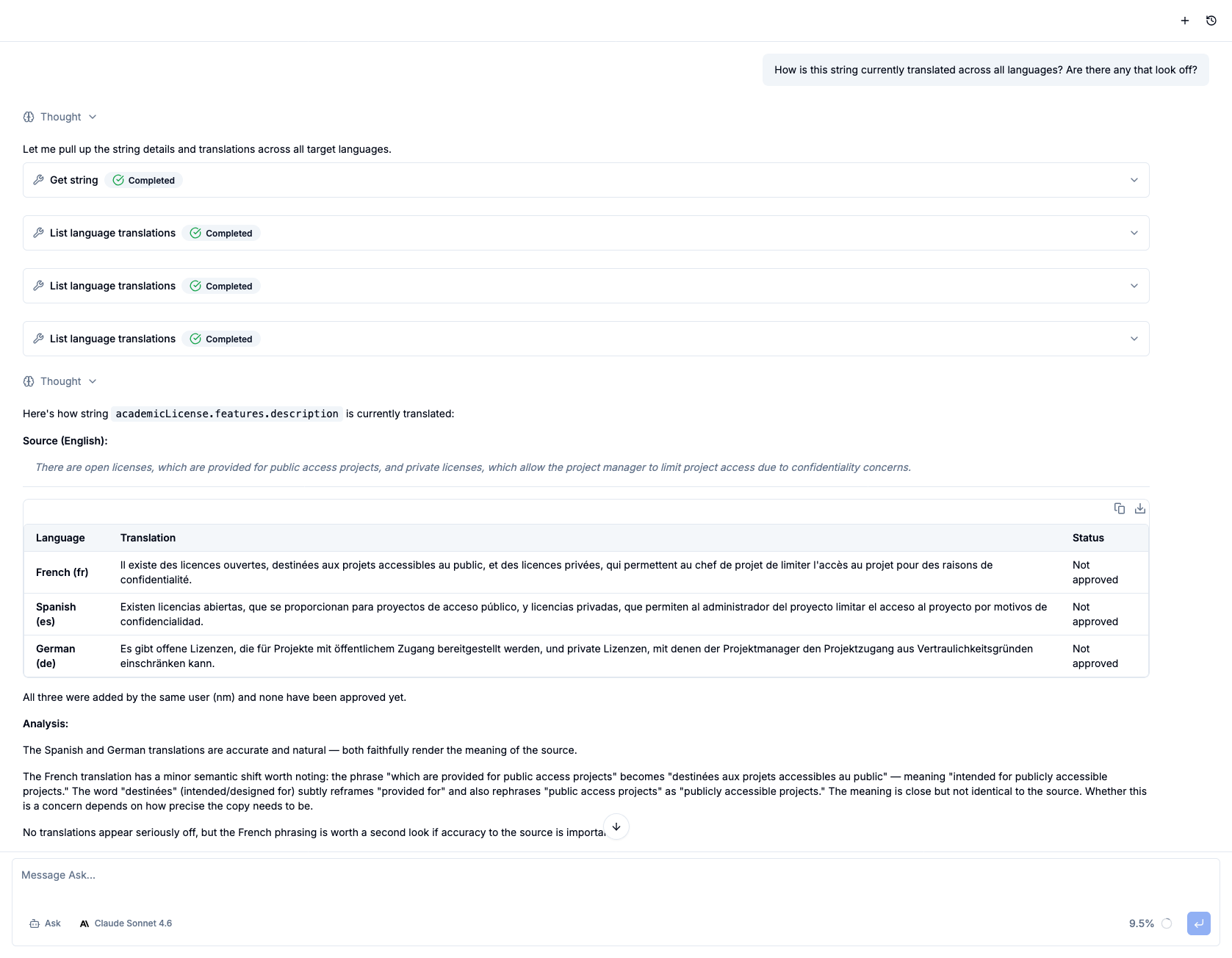 Crowdin Assistant sees your active string, existing translations, and workflow context in real time
Scripts and the Crowdin API
Some jobs are bigger than a single API call: a report across thirty projects, a bulk change the UI has no button for, a one-off cleanup of an exported file. Assistant has a personal workspace for exactly that.
- A workspace that persists – every user gets their own working directory, and its files survive between chats and visits
- Code on demand – Assistant writes and runs scripts in Node.js, Python, and Bash, keeps intermediate files, and processes exports
- Crowdin API, already connected – the token and API address are preconfigured in the workspace, so a
curlcall or an API client works right away, nothing to paste - Your permissions, not more – the token is issued on your behalf, so Assistant can do exactly what you can do in Crowdin
Custom Agents (Admin)
Every team has different needs. Admins can create custom agents that Assistant hands work to as subagents, right inside the chat:
- Give the agent a name, a description, and a system prompt defining its role, tone, and behavior
- The description is how Assistant picks the agent – describe what it takes on and when, and it delegates whenever a request matches
- The agent runs as a subagent with the same Crowdin tools, skills, and integrations as the main chat; you see the handoff and its result in the chat
Teach Crowdin Assistant Your Team's Skills (Admin)
Out of the box, Crowdin Assistant knows how to work with projects, strings, and translations. What it can't know is your way of doing them: how you build a glossary, the house style for release notes, the checklist a new locale goes through before launch. A skill captures that knowledge once, so nobody has to re-explain it in every chat.
- Write a skill in the built-in editor with preview, upload a zip or a
SKILL.mdfile, or import directly from skills.sh, GitHub, or GitLab - Same Agent Skills format that coding agents use – bring along the skills your team already maintains
- A skill is a folder, not just a file:
SKILL.mdplus reference files, templates, and scripts. Assistant reads the files and runs the scripts in its workspace - Every skill is available in every chat, and every user in the organization benefits automatically
- Assistant pulls a skill in when the conversation calls for it, or you can invoke one explicitly with a
/command in chat - Only admins can create, edit, or remove skills – everyone else just notices that Assistant got better at your workflows
External Integrations (Admin)
Extend Assistant beyond Crowdin by connecting external services:
- GitHub and GitLab – access repos, issues, PRs, and code for accurate technical translations
- Linear, Notion, Slack – connect your project management and communication tools
- Sentry, PostHog – bring in error tracking and product analytics context
- Context7 – pull up-to-date library documentation directly into the agent's context
- Add any custom integration your organization uses
- Preview available tools before saving – no guessing what a service exposes
- All integration tools are available in every chat, alongside the Crowdin tools
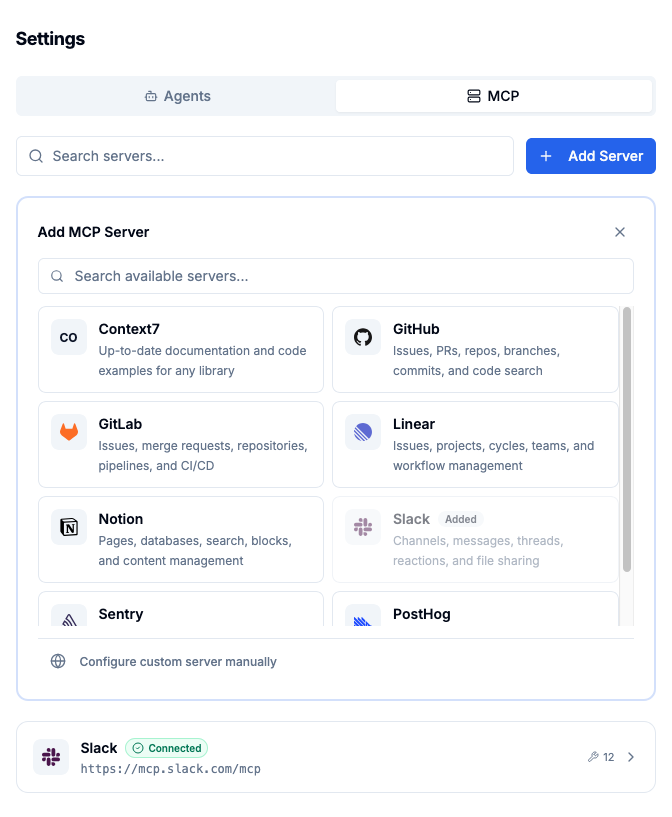 Connect external services and instantly surface their tools inside every chat
Sync Content Through Your Integration Apps
Assistant can run the integration apps installed in your Crowdin. Ask it to translate the latest blog posts on your Webflow site, and it handles the job end to end like an AI translation agent: reads the content through the app, imports it into Crowdin, has it translated, and pushes the translations back. It can also check or change the app's auto-sync schedule.
- Works with the Box, Braze, commercetools, Hygraph, Intercom, Klaviyo, Webflow, and YouTube apps
- Acts with your own Crowdin permissions, like every other request
Human in Control by Design
Crowdin Assistant never acts without accountability. Every Crowdin API call, shell command, and script is checked before it runs. Safe actions go through immediately; anything risky raises an Allow / Deny card above the input, and nothing happens until you answer. Before a destructive operation – deleting translations, clearing a translation memory or glossary, project-wide pre-translation – Assistant pauses and asks for your confirmation: radio buttons, checkboxes, or a free-text reply. Every consequential decision remains yours.
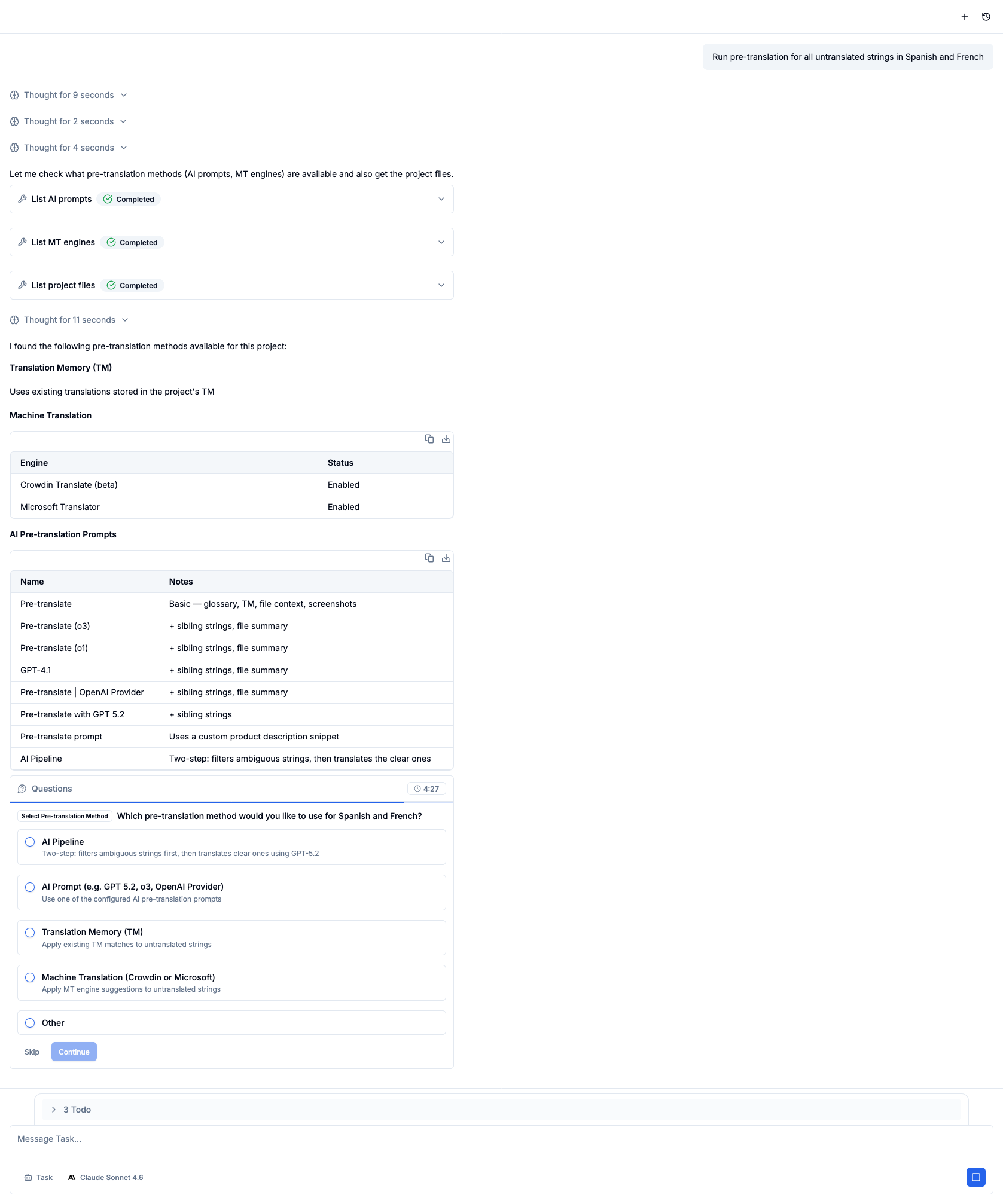 Before any critical action, Assistant pauses and asks for your confirmation
Build a Crowdin App from the Chat
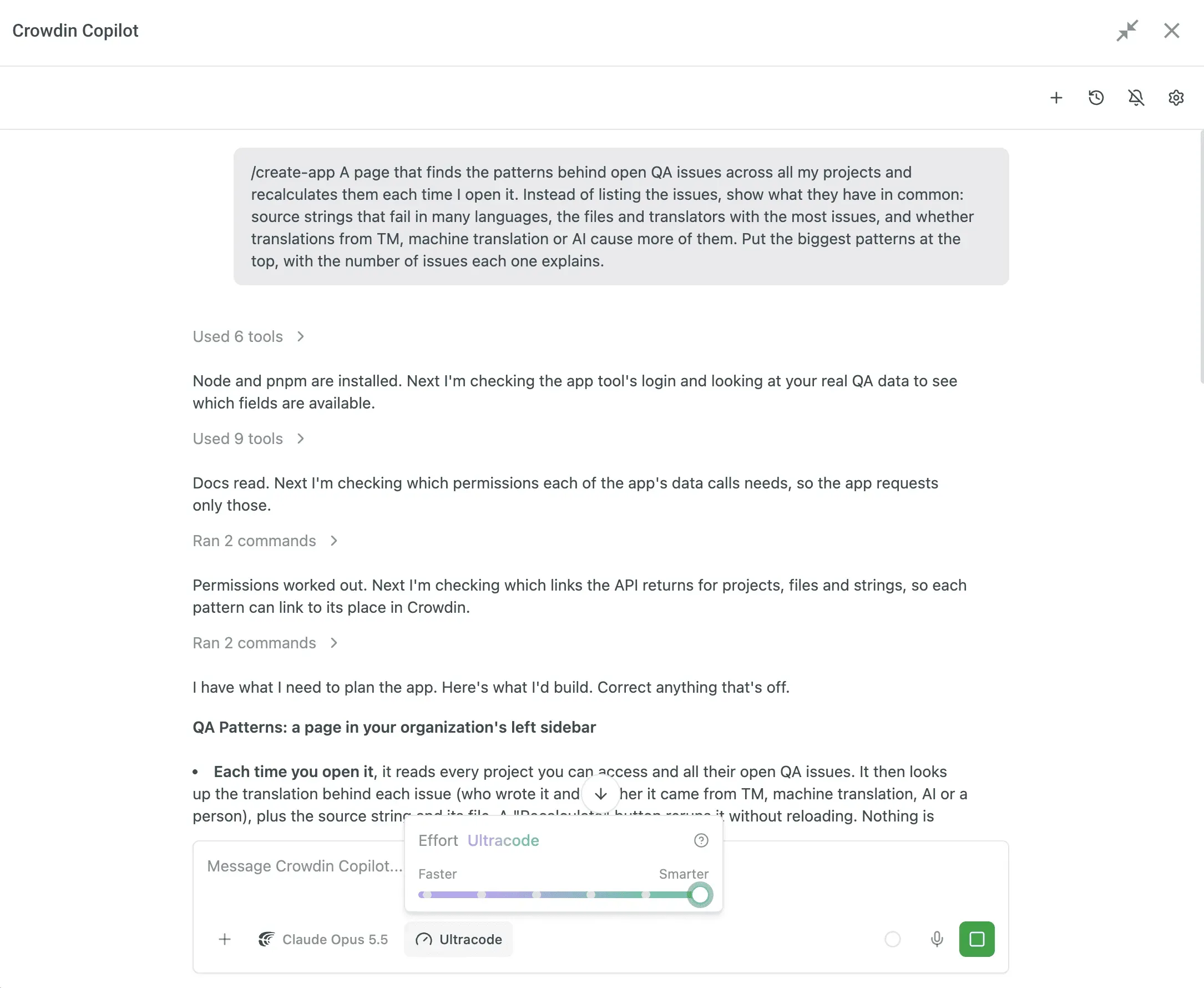
Describe a routine you repeat in Crowdin, or type /create-app, and Crowdin Assistant turns it into an app inside your organization – no developer required.
- Assistant shows a plain-language summary of the app and waits for your confirmation before registering anything
- The result is a Crowdin app shown in Crowdin's own UI: a panel in the Editor next to the string, a tool or report in a project, or a page in the organization menu – Assistant picks what fits
- No backend and no tokens in code: Crowdin performs the API calls on behalf of whoever opens the app, within the permissions the app declares, and stores the app's data
- When it's published, you get a link to open it – no code on your side
Automations That Run Without You
Some routine work shouldn't wait for someone to open a chat. An automation is a plain-language instruction plus the triggers that start it. Describe it in the chat or type /automate, and Assistant saves it under Automations in the sidebar. From then on, Assistant works as a localization agent in the background: it runs as you, with your permissions, while you're busy with something else.
Crowdin Assistant Beyond the Chat
Assistant isn't only the panel on the right. It's built into the screens where localization assets get created, so you never start from a blank form:
- Glossaries – on the glossary screen, click Create terms with Crowdin Assistant. It asks a few quick questions about your content and where to pull terms from, then starts extracting terminology right away.
- Style guides – Generate with Crowdin Assistant runs the same guided, question-and-answer setup, and drops the result into an editor that's already open and ready to edit. Edit with Crowdin Assistant revises a style guide you already have.
- Reports – every built-in report has a Discuss with Crowdin Assistant button that opens a chat to go through the numbers with you.
Crowdin Assistant Skills
Skills are focused instruction sets that load automatically when a request matches them – so Assistant reaches for the right Crowdin operation with the right options instead of guessing. System skills ship with it; nothing to install.
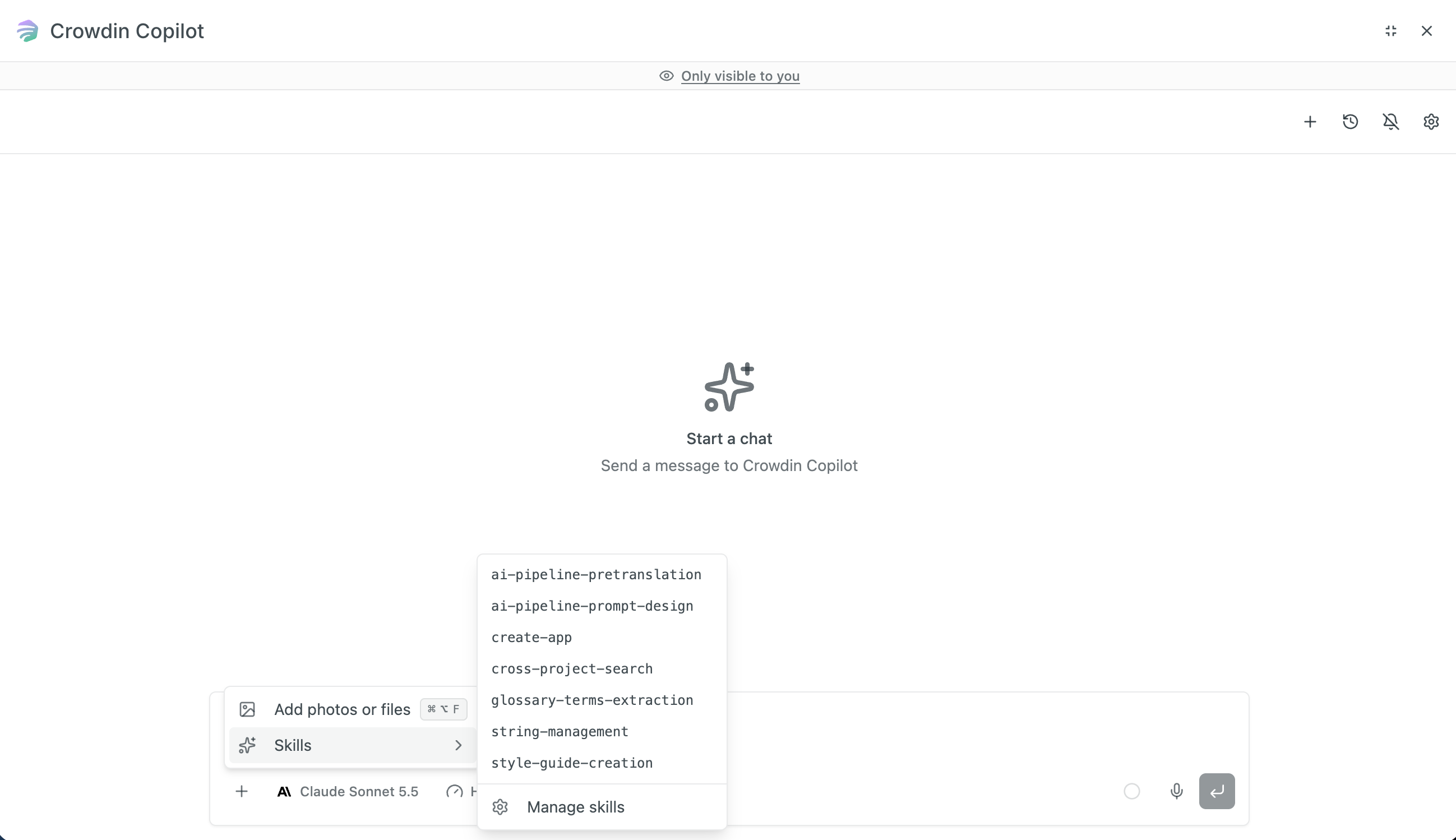
- String Management – adds, edits and removes source strings, picking the call that keeps existing translations and approvals intact.
- AI Pipeline Prompt Design – designs and edits the ordered passes an AI Pipeline makes over your strings, and keeps it from paying twice for the same check.
- AI Pipeline Pre-translation – runs AI Pipeline auto-translation and enriches string context along the way.
- Cross-Project Search – read-only search that locates strings, translations, files and branches by text across every project in your organization.
- Style Guide Creation – drafts a style guide from your real bilingual content – tone, punctuation, dates, button labels – plus the compact AI instructions auto-translation reads.
- Glossary Terms Extraction – mines source content for glossary candidates, sorts them into brand, feature and domain terms, and adds them in reviewed rounds of ten.
- Glossary Term Translations – fills in glossary translations from your project's own translated strings, shows how many strings agree on each word, and adds the terms as drafts for review.
- Create App – builds a Crowdin app end to end from a plain-language description and publishes it in your organization.
Browse all Crowdin Assistant Skills →
Chat Interface
Work Without Waiting
Working with Crowdin Assistant no longer means sitting and watching it type:
- Send while Assistant is working. Type at any point during a response and it picks your message up as part of the task it's already running, attachments included. A correction lands while it still matters, instead of after the work is finished the wrong way.
- Completion sound. Turn it on and Assistant lets you know when it has finished a reply while the chat isn't in focus – so you can start something long and go do your own work.
Voice Input
Click the mic button next to Send and talk. Your speech becomes text as you go, so you can describe a task the way you'd explain it to a colleague instead of typing it out. It runs on your browser's built-in speech recognition, so nothing extra to install.
Chat History
- Every chat is saved with an auto-generated title
- Your whole history is available wherever you open Assistant – Editor, Project, Workspace, or Profile
- A sidebar lists all your chats, with search to find an older one fast
- Resume any past chat exactly where you left off
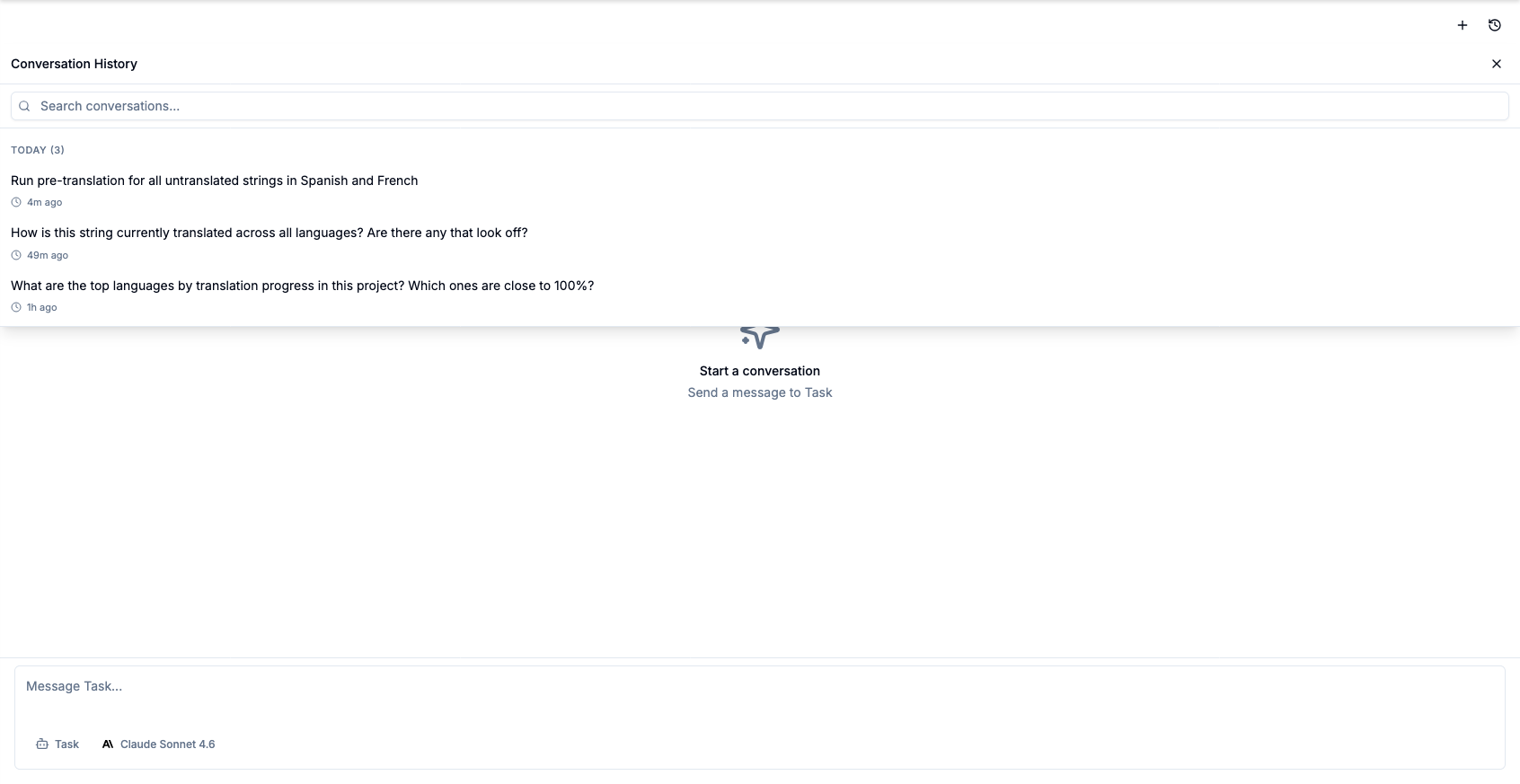 Chat history – pick up any chat right where you left off
See the Work as It Happens
While Assistant works, a status line shows how long it has been running, how many tasks are in flight, and what it is doing right now – thinking or running tools. Tool calls fold into a single "Used N tools" line that expands on click, so the chat stays readable without hiding anything.
Full Transparency on Every Action
Complex operations are broken down into individual steps, each visible and expandable in the chat. You can see exactly what Assistant did – and why. No black boxes.
Model Selection, Memory & Theme Sync
- Switch between AI models mid-conversation – your preference is saved automatically
- Assistant remembers your preferences from one chat to the next
- Dark mode syncs in real time with your Crowdin theme
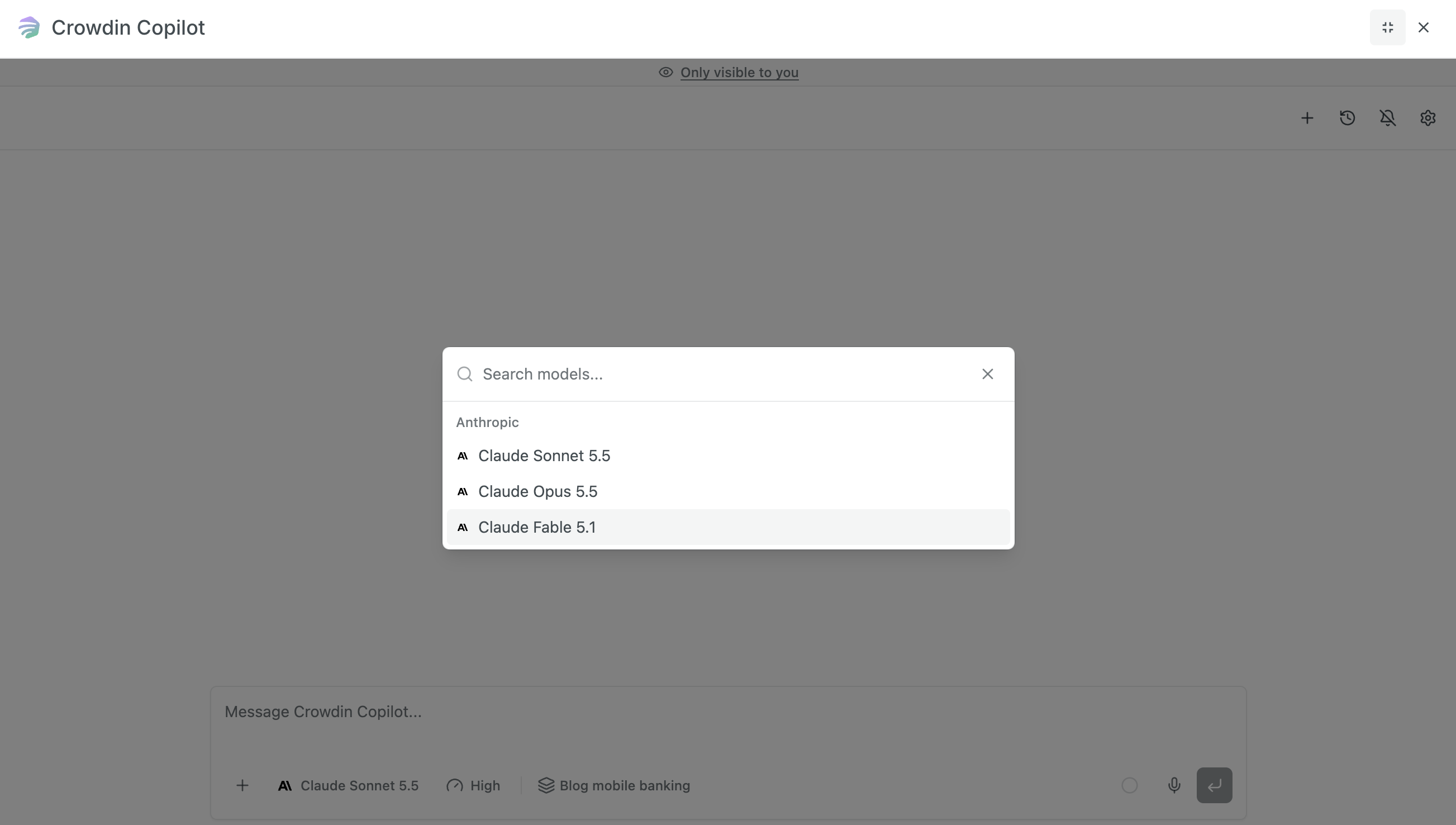 Switch models anytime – your choice is remembered for the next conversation
Usage Limits & Context Window
Crowdin Assistant displays a real-time usage indicator next to the chat box: how full the context window is, and where you stand on your daily and monthly AI limits.
- Context Window: up to 1M tokens, depending on the model. Context window is a short-term memory of your current chat. The progress bar shows how much information the AI is currently “holding in mind”. If the percentage gets very high, starting a new chat will reset the context and help the AI focus better on new tasks.
- Budget caps: The Usage tab in your AI settings lets you set daily and monthly spending caps for the whole organization, a default per-user baseline, and higher overrides for specific users. Daily limits reset every day and monthly limits on the 1st of each month (UTC); when a limit is reached, AI requests pause until the period resets, and Assistant tells you. No surprise bills from a large-scale run.
- Automation runs: $0.10 per 20 minutes of run time in Crowdin Credits, on top of model usage. An automation switches off if credits run out or 10 runs in a row fail, and a notification tells you why.
- Spend visibility: The AI Token Usage report shows what every token was spent on – the action that triggered the request, the application behind it, and an estimated cost in USD. Export it as JSON or CSV for any date range.
Data Security & Privacy
Your data remains yours. Crowdin Assistant is designed with enterprise-grade security in mind:
- No Training on Your Data: Your project content, translations, and interaction history are never used to train the underlying AI models.
- Enterprise-Grade Privacy: Crowdin ensures that your proprietary strings remain secure and are handled according to zero-data retention policies where supported by the AI provider.
- Auditable by Default: The Logs tab in your AI settings keeps a history of every AI call routed through the platform for the last 30 days, successful or failed – so you can audit activity and troubleshoot provider errors.
Getting Started
Setup (Admin)
- Install Crowdin Assistant from the Crowdin Store. On crowdin.com any user can install it into their own account (do it from the account that owns your projects); on Crowdin Enterprise, organization admins and owners install it from Workspace → Store. The install dialog sets who can use it – only you or only admins, project managers and developers, all project members, or a custom set of users – for all projects or selected ones; change it later under Account Settings → Apps or Organization Settings → Apps.
- Configure your AI provider via Crowdin AI (AI → Providers). Enable Crowdin AI, the engine managed by Crowdin, and top up the Crowdin Credits balance on its provider page – or use your own Anthropic API key or Microsoft Foundry. Spending limits for the organization and per user live in the Usage tab of the same AI section.
- Open the Crowdin Assistant Settings to configure agents, skills and optional integrations. Where to find:
- crowdin.com: Go to Account Settings (top right) → Crowdin Assistant tab.
- Crowdin Enterprise: Go to Organization Settings (left sidebar) → Crowdin Assistant tab.
Daily Use
- Click the Crowdin Assistant button in the top bar on any page – a project, the Workspace, your profile – or open the right panel in the Editor. Drag the panel's left edge to resize it – the width you set is kept
- Describe what you need, attach a file, or call a skill with
/ - Assistant takes care of the routine work – you stay in control
Requirements
- Crowdin.com or Crowdin Enterprise account
- An Anthropic model, connected in Crowdin's AI settings. Crowdin Assistant runs on Anthropic's Claude models – bring your own Anthropic API key, connect Microsoft Foundry if your Claude deployments live in Azure, or top up a balance on Crowdin AI to use managed models. Other AI providers configured in Crowdin power features like AI Pipeline, but not Assistant.
Crowdin Assistant puts the power of AI where it belongs – right inside your localization workflow, with full context, full control, and zero context-switching.


Crowdin is a platform that helps you manage and translate content into different languages. Integrate Crowdin with your repo, CMS, or other systems. Source content is always up to date for your translators, and translated content is returned automatically.
Learn More- —Crowdin Enterprise
- —crowdin.com
Released on Mar 2, 2026
Updated on Nov 4, 2026
Published by Crowdin
Identifier:crowdin-assistant